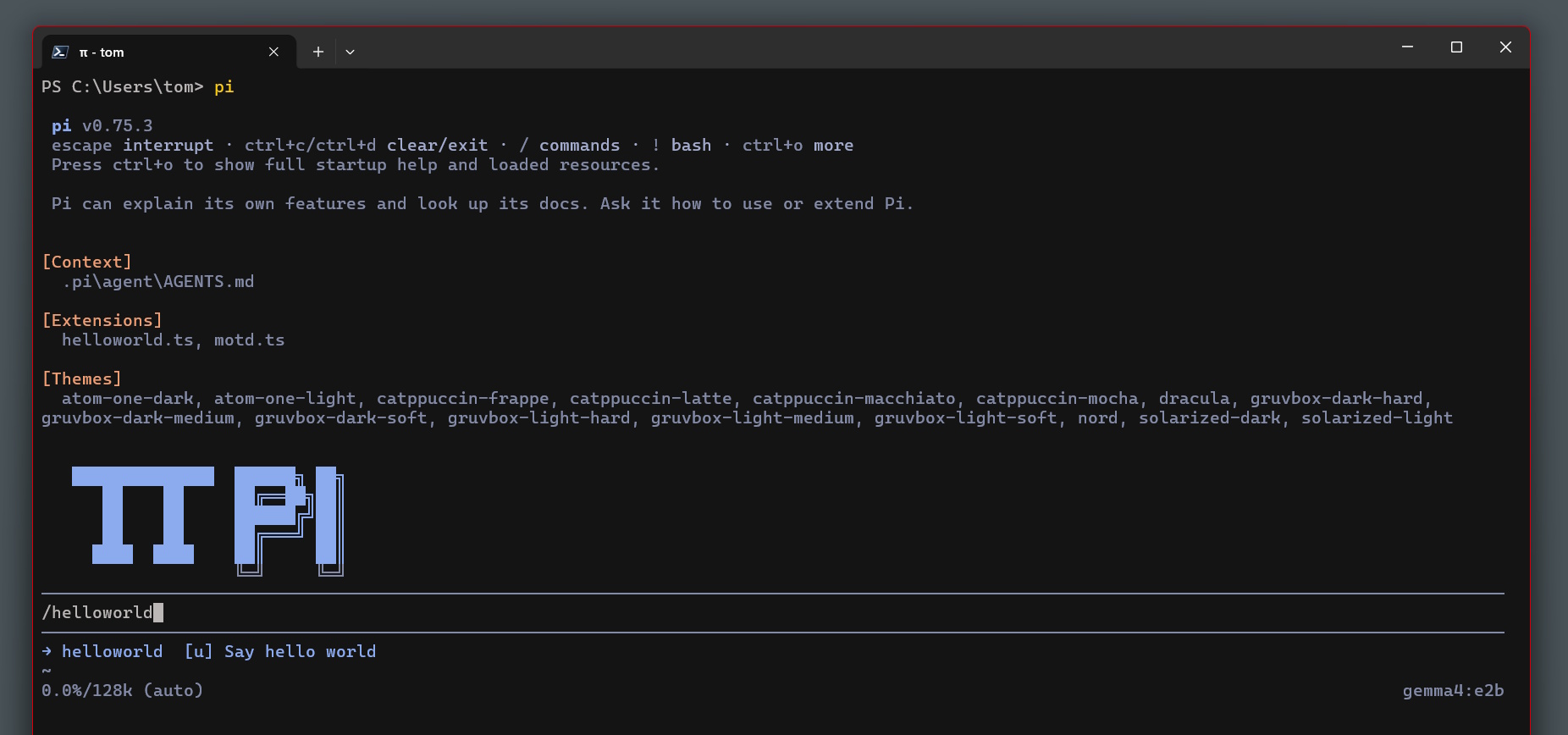
If like me, you’re spending an increasing amount of time learning Pi Agent - the minimal terminal coding harness - you’ll quickly hit the point where you want to bend it to your workflow. There are four different mechanisms for doing that: context files, prompt templates, skills, and TypeScript extensions. They look similar on the surface but they operate at completely different layers, and picking the wrong one means either burning context unnecessarily or writing TypeScript when a Markdown file would have done the job.
This post is a practical breakdown of all four, with real examples from my pi config.
The Four Layers at a Glance
| Layer | Runs code? | Always in context? | Loaded on-demand? |
|---|---|---|---|
Context file (AGENTS.md) | No | Yes - always injected | No |
| Prompt template | No | No | Via slash command |
Skill (SKILL.md) | No | Stub only | Yes - agent loads full content when relevant |
| TypeScript extension | Yes | Loaded at startup | N/A - it’s running code |
The core rule: static text that should always apply → context file; static text for a specific task → skill (or prompt template for simple snippets); code that needs to run → extension.
Context Files - the Rulebook That’s Always Open
Context files are AGENTS.md (or CLAUDE.md) files that Pi loads at startup and injects directly into the system prompt. They’re always present, every session, no matter what you’re doing.
Pi walks up the directory tree from your working directory collecting these files, plus a global one at ~/.pi/agent/AGENTS.md. That means you can layer them: machine-wide defaults in the global file, repo-specific rules at the project root.
Here’s what the global file in my pi config looks like:
# Global PI Instructions

Use PI as a planning-oriented coding harness.

- Pure git triage, staging, and commit-generation work does not require
  creating a fresh plan when no new implementation work is being started.
- Once the task shifts into implementation, create or update the relevant
  plan before making changes.
- If you need to ask the user any question at all in order to proceed,
  use the `interview_user` tool instead of asking directly in chat.
And the repo-level AGENTS.md in the same config repo adds rules specific to that project:
# Repo-specific PI Instructions

This repository treats plan files as part of its shipped change history.

- Completed plan files under `.pi/plans/` are expected to be committed
  with the work they explain in this repository.
- When you change repo-managed extensions, skills, or shared guidance,
  test through the live Pi install/apply flow rather than assuming repo
  edits alone are enough.
Use context files for: Standing rules that should shape every interaction - workflow conventions, safety guardrails, project-specific norms. If you find yourself writing the same instruction at the start of every session, it belongs in a context file.
Don’t use context files for: Task-specific instructions that only matter sometimes. Putting a detailed frontend design guide in AGENTS.md wastes tokens on every session, even ones that have nothing to do with UI work. That’s what skills are for.
Prompt Templates - Simple Slash-Command Macros
Prompt templates are the lightest-weight layer. A .md file in ~/.pi/agent/prompts/ (or .pi/prompts/ for project-local) becomes a /commandname slash command that expands into a canned prompt.
---
description: Review staged git changes
---
Review the staged changes (`git diff --cached`). Focus on:
- Bugs and logic errors
- Security issues
- Error handling gaps
That’s it. No progressive disclosure, no scripts, no code. Just text substitution. Good for prompts you type frequently but don’t want to retype. Not good for anything that needs structured instructions, setup steps, or associated scripts - that’s what skills are for.
Skills - On-Demand Capabilities with Progressive Disclosure
Skills are the more interesting mechanism. A skill is a directory containing a SKILL.md file (plus optional scripts, reference docs, and assets). At startup, Pi scans all skill locations and extracts each skill’s name and description into the system prompt. The full content of SKILL.md is only loaded when the agent decides a task matches - or when you explicitly invoke it with /skill:name.
This is progressive disclosure: the description costs you a few tokens per session; the full instructions only arrive when they’re needed.
Here’s a real SKILL.md from the anthropic-frontend-design package:
---
name: frontend-design
description: Create distinctive, production-grade frontend interfaces with
  high design quality. Use this skill when the user asks to build web
  components, pages, artifacts, posters, or applications. Generates
  creative, polished code and UI design that avoids generic AI aesthetics.
---

This skill guides creation of distinctive, production-grade frontend
interfaces that avoid generic "AI slop" aesthetics...

## Design Thinking

Before coding, understand the context and commit to a BOLD aesthetic
direction...
The description is the critical part. It’s what the agent uses to decide whether this skill is relevant. A vague description like “helps with frontend stuff” means the agent will frequently miss it. The example above is specific about both what it does and when to use it - that’s load-bearing text.
Does Pi Call Skills Automatically?
Sort of. The agent can autonomously decide to load a skill based on description matching, but Pi’s own docs caveat that “models don’t always do this.” In practice, reliability varies by model. You can force it with /skill:frontend-design.
By comparison, Claude Code has the same description-based matching but with stronger enforcement - it’s framed as a hard rule rather than a suggestion. The underlying mechanism is identical: the LLM reads the description and decides whether to invoke. Both systems are probabilistic, not deterministic.
Disabling a Skill
A couple of methods that actually work (tested):
Rename SKILL.md - Pi looks for the file by name. Rename it to SKILL.md.disabled and run /reload. The skill disappears immediately.
Remove from settings.json - If the skill came from a package entry like "npm:@juicesharp/rpiv-pi", remove that line from your agent settings.json and run /reload. Commenting it out is not enough - Pi doesn’t understand comments in JSON.
Add disable-model-invocation: true to frontmatter - This hides the skill from the system prompt but keeps it invocable manually with /skill:name. Useful if you want to keep it available without it auto-triggering.
TypeScript Extensions - Code That Runs Alongside Pi
Extensions are where things get genuinely powerful. An extension is a TypeScript module that Pi loads at startup and runs as part of its process. Extensions can subscribe to lifecycle events, register new tools the LLM can call, add slash commands, manipulate the TUI, and persist state across sessions.
The key distinction: extensions are not text the LLM reads. They are code that executes.
A Simple Extension: /ship
The commit-helper extension is a good entry point. It does one thing: registers a /ship command that sends a canned git workflow prompt to the agent.
export default function commitHelperExtension(pi: ExtensionAPI) {
  pi.registerCommand("ship", {
    description: "Inspect changes, stage relevant files, commit, and push",
    handler: async (_args, ctx) => {
      const busy = !ctx.isIdle();
      pi.sendUserMessage(COMMIT_HELPER_PROMPT, {
        deliverAs: busy ? "followUp" : undefined
      });
      ctx.ui.notify(
        busy ? "Queued shipping workflow as a follow-up." : "Queued shipping workflow.",
        "info"
      );
    },
  });
}
It also listens for a custom event from a keyboard shortcut extension, so you can trigger it with a hotkey without typing /ship. That’s two extension instances communicating via Pi’s internal event bus - something a context file or skill simply cannot do.
A More Complex Extension: Custom Tools and TUI
The interview-mode extension registers a full custom tool called interview_user. When the agent calls this tool, it doesn’t just run a function - it takes over the terminal with a tabbed questionnaire UI, waits for the user to answer all questions, then returns structured answers back to the agent.
pi.registerTool({
  name: "interview_user",
  label: "Interview User",
  description: "Opens a tabbed in-session TUI interview and returns structured answers.",
  parameters: InterviewParamsSchema,

  async execute(_toolCallId, params, _signal, _onUpdate, ctx) {
    // Renders a full interactive TUI overlay, waits for user input
    const result = await ctx.ui.custom<InterviewUiResult>((tui, theme, _kb, done) => {
      // ... full keyboard handling, tab navigation, option lists ...
      return { render, invalidate: refresh, handleInput };
    });

    // Returns structured answers to the LLM
    return {
      content: [{ type: "text", text: answerLines.join("\n") }],
      details: { questions, answers: finalAnswers, cancelled: false },
    };
  },

  // Custom rendering in the conversation view
  renderCall(args, theme) { ... },
  renderResult(result, _options, theme) { ... },
});
This is ~750 lines of TypeScript and represents what’s actually involved in a production-grade custom tool: schema validation, input coercion for local model compatibility, custom TUI rendering, and structured result details for the conversation view.
The Heavyweight: Event Interception and Runtime Behaviour
The plan-mode extension is the most instructive example of what extensions can really do. It implements a planning gate - no non-trivial implementation work until a plan file exists. Here’s what it wires together:
Tool call interception - blocks edit, write, and mutating bash commands when planning mode is on:
pi.on("tool_call", async (event, ctx) => {
  if (planningMode) {
    if (event.toolName === "edit" || event.toolName === "write") {
      return { block: true, reason: "Planning mode is read-only." };
    }
    if (event.toolName === "bash" && !isReadOnlyBash(command)) {
      return { block: true, reason: "Planning mode only allows read-only bash." };
    }
  }
});
Context injection - injects a live plan summary into every agent turn via before_agent_start, giving the agent an up-to-date view of which plan steps are complete:
pi.on("before_agent_start", async (_event, ctx) => {
  if (current) {
    return {
      message: {
        customType: "current-plan-context",
        display: false,
        content: `Current plan: ${current.fileName}\nSteps: ${done}/${total}...`,
      },
    };
  }
});
Session state persistence - uses pi.appendEntry() to write plan state into the session file, so if you resume a session tomorrow the plan context is restored exactly where you left it.
UI widgets - drives a footer status line and an above-editor widget showing the current plan checklist in real time.
Tool allowlisting - dynamically switches which tools the agent can use (pi.setActiveTools()) depending on whether planning mode is on or off.
This is not something you could approximate with a context file. A context file is static text; this is code reacting to runtime state.
The Practical Decision Tree
When you’re deciding which layer to reach for:
- Is it a rule or preference that applies to every session? → Context file
- Is it a reusable prompt snippet you type frequently? → Prompt template
- Is it a set of instructions that only matters for a specific kind of task? → Skill - write a precise description so the agent knows when to load it
- Does it need to run code, intercept events, register tools, or manage UI? → TypeScript extension
The extension layer is genuinely more powerful than it might look from the docs. The plan-mode example above is a practical workflow enforcement system - blocking certain tool calls, injecting live context, managing UI state - all implemented as ~1,500 lines of TypeScript that Pi loads at startup. That’s middleware-level power, not just a fancy prompt.
What’s Next
Having a clear model of these four layers makes the next steps obvious. Skills are the easiest thing to author yourself - a SKILL.md with a well-written description gets you a long way. Extensions require TypeScript, but the API surface is clean and the examples in my pi config are readable. The commit-helper is probably 30 minutes of work to adapt for your own workflow; the interview-mode UI would take considerably longer.
Future posts in this series will cover building a custom skill from scratch and then a first-party extension - using my pi config as the starting point.