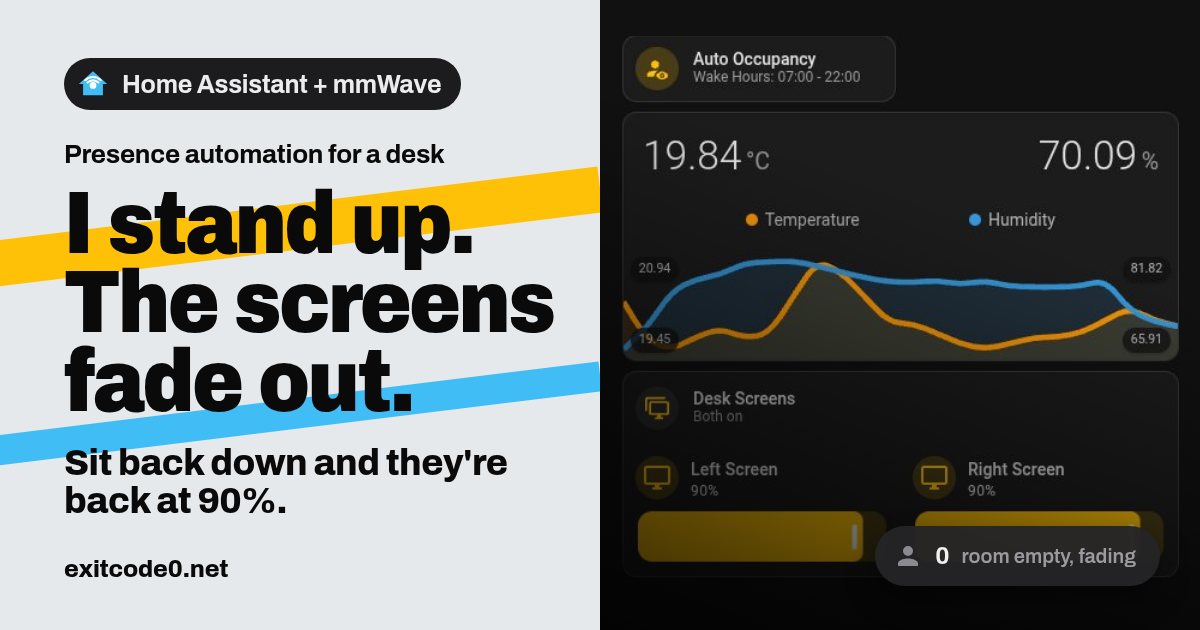
My study has five things that glow: two desk monitors, a wall-mounted dashboard screen, a strip light and a custom Home Assistant display frame I built from a cheap Android photo frame. Every time I got up to make a coffee, all five stayed on and lit an empty room. Now they notice I’ve gone. A minute after I stand up, everything fades down together, and when I sit back down it all comes back. Not at 3am, though.
The whole thing is a SwitchBot mmWave presence sensor, two Home Assistant scripts, one automation, and a small Windows app of mine that makes the monitors show up in Home Assistant as dimmable lights. It also covers the two bugs that showed up the next morning, because they’re the bits you’d hit too.
The short version, if you only want the shape of it:
- Home Assistant can turn your PC monitors off when you leave the desk, as long as something exposes them as entities. Here that’s DDC/CI over MQTT.
- mmWave presence beats PIR for a desk, because it still sees you when you’re sat still.
- Save the room’s state before fading, restore it on return, and only restore inside “wake hours”.
- Monitors keep their own brightness, so catch them waking up rather than trusting a saved value.
- At about 80 W and 30p per kWh, 20 empty minutes a day saves roughly £3 a year. An hour a day is nearer £9.
The sensor: SwitchBot mmWave Presence Sensor over Bluetooth
mmWave is the right tech for a desk. A PIR sensor only sees movement, so it decides you’ve left while you’re sat still reading. mmWave picks up breathing-level movement.
The one I used is the SwitchBot mmWave Presence Sensor (Amazon UK). It’s battery powered, and it has a PIR and a light sensor alongside the mmWave radar.
The SwitchBot one talks Bluetooth, and Home Assistant’s built-in switchbot integration picks it up passively from its adverts. I already had a USB dongle and an ESPHome Bluetooth proxy in the room, so it appeared on its own. Point its face at your chair, not the doorway. If the sticky pad lets go, the parametric sensor mount I printed for small sensors is easy to resize for it. You get:
binary_sensor.desk_presence_occupancy, the bit that matters- a light level from 1 to 31 (a scale, not lux)
- battery and signal strength
That’s all. There are no settings in Home Assistant. The library behind the integration can’t send commands to this model, so detection range, zones and timeout only change in the SwitchBot app.
Gotcha: occupancy stays “clear” until you set it up in the app
Out of the box, mine reported clear no matter how much I waved at it. The adverts were arriving fine. Decoding them showed the motion bit was simply never set: byte 7 of the manufacturer data read 0x0c. After a one-off setup in the SwitchBot app, the same byte read 0xcc and occupancy started working. The MAC address didn’t change, so Home Assistant carried on as if nothing had happened.
The app insists on an account for that setup. I’m not thrilled about it, but you only do it once, and after that the sensor works locally over Bluetooth with no cloud involved.
What it controls
| Thing | How Home Assistant drives it |
|---|---|
| Two desk monitors | light entities with brightness, from nodoff (below) |
| Wall screen | a Compute Stick driving a wall monitor: a switch for the HDMI output and a number for backlight brightness, both over MQTT |
| Strip light | a Hue strip on Zigbee, a normal light with transitions |
| Display frame | the rooted Android frame from the post linked above, brightness through the Fully Kiosk integration |
nodoff: monitors as Home Assistant lights
The desk monitors are the interesting part. They’re plugged into a Windows PC, and Home Assistant normally can’t see a PC’s monitors at all.
nodoff is a small tray app I’ve written to fix that. It isn’t released yet, but here’s what it does. It talks to each monitor over DDC/CI, the control channel that already runs inside your HDMI and DisplayPort cables, and publishes every monitor to Home Assistant over MQTT discovery as a light:
- on/off puts the monitor into standby or wakes it (VCP code
D6) - brightness sets the real backlight (VCP code
10), the same as pressing the monitor’s own buttons - availability greys the entity out when the PC is off or asleep
No overlay, no dimming filter, nothing for the GPU to do. It runs as your user, never as admin. It’s the opposite of the PowerShell keep-awake script I wrote years ago: that one stops screens sleeping, this one decides when they should. Once it’s out I’ll write it up properly. For this post, all you need to know is that the monitors are lights with brightness, and that they go unavailable when the PC sleeps. That second point turned out to matter.
The design
Four parts:
- An arm switch.
input_boolean.auto_occupancy, so I can turn the whole thing off from the dashboard, or by voice if you’ve got a local voice assistant set up. - An away script. It saves the current levels as JSON in an
input_text, then fades everything down in parallel. - A back script. It reads the JSON back and restores it. It runs only between “wake hours”, so a 2am trip to the desk for a phone charger doesn’t light the room up.
- One automation wiring the sensor to both scripts.
Create the helpers first (Settings > Devices & services > Helpers, or YAML):
input_boolean:
  auto_occupancy:
    name: Auto Occupancy
    icon: mdi:account-eye

input_text:
  study_snapshot:
    name: Study occupancy snapshot
    max: 255

input_datetime:
  auto_occupancy_wake_from:
    name: Auto Occupancy wake from
    has_time: true
    initial: "07:00"
  auto_occupancy_wake_until:
    name: Auto Occupancy wake until
    has_time: true
    initial: "22:00"
The automation
- id: study_occupancy
  alias: Study Occupancy - Screens and Strip
  mode: restart
  triggers:
    - trigger: state
      entity_id: binary_sensor.desk_presence_occupancy
      from: "on"
      to: "off"
      for: "00:01:00"
      id: away
    - trigger: state
      entity_id: binary_sensor.desk_presence_occupancy
      from: "off"
      to: "on"
      id: back
  conditions:
    - condition: state
      entity_id: input_boolean.auto_occupancy
      state: "on"
  actions:
    - choose:
        - conditions:
            - condition: trigger
              id: away
          sequence:
            - action: script.turn_on
              target:
                entity_id: script.study_occupancy_away
        - conditions:
            - condition: trigger
              id: back
            - condition: time
              after: input_datetime.auto_occupancy_wake_from
              before: input_datetime.auto_occupancy_wake_until
          sequence:
            - action: script.turn_off
              target:
                entity_id: script.study_occupancy_away
            - action: script.study_occupancy_back
Leaving has no time condition, so the room always powers down. Coming back does. script.turn_off on the away script matters: sit back down mid-fade and the fade stops before the restore starts, rather than the two fighting each other.
Note: For testing, drop the
for:to 10 seconds. Waiting a full minute every time you walk out of the room gets old fast.
The away script
The snapshot is only written when it’s empty. Without that check, you’d leave, come back outside wake hours (nothing restores), leave again, and the second save would record everything as off. The first save is the one you want back.
study_occupancy_away:
  alias: Study Occupancy - Away
  mode: single
  sequence:
    - if:
        - condition: template
          value_template: "{{ states('input_text.study_snapshot') in ['', 'unknown', 'unavailable'] }}"
      then:
        - action: input_text.set_value
          target:
            entity_id: input_text.study_snapshot
          data:
            value: >-
              {{ {'strip': (state_attr('light.strip', 'brightness') or 0)
                           if is_state('light.strip', 'on') else 0,
                  'wall_on': is_state('switch.wall_screen', 'on'),
                  'left': is_state('light.desk_left', 'on'),
                  'right': is_state('light.desk_right', 'on'),
                  'frame': states('number.frame_brightness') | int(117)} | to_json }}
    - parallel:
        # Strip: it supports transitions, so let the bulb do the fade
        - if:
            - condition: state
              entity_id: light.strip
              state: "on"
          then:
            - action: light.turn_off
              target:
                entity_id: light.strip
              data:
                transition: 15

        # Wall screen: step the backlight to 0 over 15 s, then cut HDMI
        - if:
            - condition: state
              entity_id: switch.wall_screen
              state: "on"
          then:
            - variables:
                start: "{{ states('number.wall_screen_brightness') | int(0) }}"
            - repeat:
                count: 5
                sequence:
                  - action: number.set_value
                    target:
                      entity_id: number.wall_screen_brightness
                    data:
                      value: "{{ (start * (5 - repeat.index) / 5) | round(0) | int }}"
                  - delay: 3
            - action: switch.turn_off
              target:
                entity_id: switch.wall_screen

        # Desk monitors: no transition support over DDC/CI, so step them too
        - repeat:
            for_each:
              - light.desk_left
              - light.desk_right
            sequence:
              - if:
                  - condition: template
                    value_template: "{{ is_state(repeat.item, 'on') }}"
                then:
                  - variables:
                      mon: "{{ repeat.item }}"
                      start: "{{ state_attr(repeat.item, 'brightness') | int(230) }}"
                  - repeat:
                      count: 4
                      sequence:
                        - action: light.turn_on
                          target:
                            entity_id: "{{ mon }}"
                          data:
                            brightness: "{{ [(start * (5 - repeat.index) / 5) | round(0) | int, 1] | max }}"
                        - delay: 3
                  - action: light.turn_off
                    target:
                      entity_id: "{{ mon }}"

        # Photo frame: dim to 5, never off (a screen-off frame can't be woken by touch)
        - if:
            - condition: numeric_state
              entity_id: number.frame_brightness
              above: 5
          then:
            - variables:
                start: "{{ states('number.frame_brightness') | int(117) }}"
            - repeat:
                count: 5
                sequence:
                  - action: number.set_value
                    target:
                      entity_id: number.frame_brightness
                    data:
                      value: "{{ (5 + (start - 5) * (5 - repeat.index) / 5) | round(0) | int }}"
                  - delay: 3
The monitors can’t do transitions over DDC/CI, so the fade is a handful of brightness writes three seconds apart. That’s enough steps to read as a fade without hammering the monitor. The whole thing takes about 25 seconds.
The back script
study_occupancy_back:
  alias: Study Occupancy - Back
  mode: single
  sequence:
    - variables:
        raw: "{{ states('input_text.study_snapshot') }}"
    - condition: template
      value_template: "{{ raw not in ['', 'unknown', 'unavailable'] }}"
    - variables:
        snap: "{{ raw | from_json }}"
    - parallel:
        # Strip only when it's dark: 1 h before sunset to 1 h after sunrise
        - if:
            - condition: template
              value_template: "{{ snap.strip | int(0) > 0 }}"
            - condition: or
              conditions:
                - condition: sun
                  after: sunset
                  after_offset: "-01:00:00"
                - condition: sun
                  before: sunrise
                  before_offset: "01:00:00"
          then:
            - action: light.turn_on
              target:
                entity_id: light.strip
              data:
                brightness: "{{ snap.strip | int }}"
                transition: 3

        - if:
            - condition: template
              value_template: "{{ snap.wall_on }}"
          then:
            - action: switch.turn_on
              target:
                entity_id: switch.wall_screen
            - action: script.wall_screen_adaptive_brightness

        # Any monitor that was on, or is on now, goes to 90%
        - repeat:
            for_each: >-
              {{ (['light.desk_left'] if snap.left or is_state('light.desk_left', 'on') else [])
                 + (['light.desk_right'] if snap.right or is_state('light.desk_right', 'on') else []) }}
            sequence:
              - action: light.turn_on
                target:
                  entity_id: "{{ repeat.item }}"
                data:
                  brightness_pct: 90

        - action: number.set_value
          target:
            entity_id: number.frame_brightness
          data:
            value: "{{ snap.frame | int }}"
    - action: input_text.set_value
      target:
        entity_id: input_text.study_snapshot
      data:
        value: ""
The monitors go back to a fixed 90% rather than their saved level, because that’s where I always want them. The wall screen gets something cleverer, further down.
First test
The night I built it I walked out at 22:24, outside wake hours, to check that the fade still runs. From the logbook:
- 22:24:12 the sensor cleared
- 22:24:22 the away script started (10 s test delay)
- 22:24:35 left monitor off
- 22:24:47 right monitor off
The strip and wall screen were already off, so they were skipped, and the snapshot from earlier in the evening was kept rather than overwritten. Waking is slower than sleeping: one of my monitors takes about 28 seconds to come out of DDC standby. That’s the monitor, not Home Assistant, and you’ll want to know your own monitor’s number before you decide it’s broken.
The next morning: two things came back too dim
Monitors woke at 1%
I walked in at 09:58 and the monitors stayed dark. Then they came on at about 1% brightness. The history explained it:
- The PC had been asleep overnight, so both monitors were
unavailablein Home Assistant. The back script told them to turn on and nobody was listening. - I stepped out at 10:00. The away script saw the monitors as not
on, so it saved them as off. - At 10:02 the PC woke, nodoff reconnected, and the monitors came on at the brightness the last fade had left in the monitor itself: 3 out of 255.
- When I came back at 10:04, the snapshot said they’d been off, so the restore skipped them.
DDC brightness lives in the monitor, not in Home Assistant, so whatever the last fade step wrote is what you get on the next wake. The fix is to stop relying on the snapshot for this and catch the monitor waking up instead:
- id: study_monitors_wake_90
  alias: Study Occupancy - Monitors Wake at 90%
  mode: parallel
  triggers:
    - trigger: state
      entity_id:
        - light.desk_left
        - light.desk_right
      from: ["off", "unavailable", "unknown"]
      to: "on"
  conditions:
    - condition: state
      entity_id: input_boolean.auto_occupancy
      state: "on"
    - condition: time
      after: input_datetime.auto_occupancy_wake_from
      before: input_datetime.auto_occupancy_wake_until
    - condition: template
      value_template: "{{ state_attr(trigger.entity_id, 'brightness') | int(0) < 229 }}"
  actions:
    - action: light.turn_on
      target:
        entity_id: "{{ trigger.entity_id }}"
      data:
        brightness_pct: 90
from: unavailable is the important line. It fires when the PC wakes and nodoff reappears, and when I turn a monitor on by hand. It only acts at the moment the monitor comes on, so if I turn one down afterwards it stays where I put it.
The wall screen came back at 6%
Same morning, different cause. The wall screen’s saved brightness was 6%, because that’s what I’d had it at the night before. Restoring it faithfully at 10am was correct and useless.
What I wanted was adaptive brightness. The room already has two light sensors: the photo frame’s ambient light sensor reports real lux, and the presence sensor reports its 1-31 level. Comparing them over a morning, the SwitchBot level fits lux ≈ 0.2 × level² well enough (level 17 ≈ 60 lx, level 11 ≈ 24 lx). So:
wall_screen_adaptive_brightness:
  alias: Wall Screen - Adaptive Brightness
  mode: restart
  sequence:
    - variables:
        lux: >-
          {% set f = states('sensor.frame_illuminance') | float(-1) %}
          {% set l = states('sensor.desk_presence_light_level') | float(-1) %}
          {{ [f, (0.2 * l * l) if l >= 0 else -1] | max }}
        target: >-
          {% if lux < 0 %}{{ 50 if is_state('sun.sun', 'above_horizon') else 25 }}
          {% else %}{{ [[(15 + 35 * log(1 + lux, 10) / log(61, 10)) | round(0) | int, 15] | max, 70] | min }}
          {% endif %}
    - action: number.set_value
      target:
        entity_id: number.wall_screen_brightness
      data:
        value: "{{ target }}"
Taking the higher of the two readings means a sensor in shadow doesn’t drag the screen down. The curve is logarithmic because that’s roughly how eyes work: the jump from 0 to 5 lux matters far more than 60 to 65.
| Room light | Wall screen |
|---|---|
| 0 lx (dark) | 15% |
| 2 lx (evening, lamps low) | 24% |
| 20 lx | 41% |
| 60 lx (bright morning) | 50% |
| very bright | 70% cap |
Those numbers sit close to what I’d been setting by hand for the previous two days, which is how I picked the 15 and the 35. If both sensors are offline it falls back to 50% in daylight and 25% after dark.
The back script calls it, and a second automation calls it whenever the wall screen’s switch goes on during wake hours. That covers the screen’s own morning schedule turning it on, as well as me turning it on by hand. Tested by switching the screen off, setting it to 5% to copy what the fade leaves, and switching it on again: it went straight to 50% at 60 lx.
Smaller things worth knowing
- Clashing schedules. The wall screen has its own overnight off schedule, and it originally ended at 08:00 while my wake hours started at 07:00. The restore skipped it, correctly, and I spent a minute thinking it was broken. Line the schedules up.
- The strip light in daylight. Restoring the strip at 11am is just wasted power, so it only comes back between an hour before sunset and an hour after sunrise. Everything else restores whenever you’re in wake hours.
- The frame never goes fully off. On this frame, screen-off is a real sleep and the touchscreen doesn’t wake it. Dimming to 5 is close enough to dark and stays touchable.
The dashboard bits
Two small additions on the Study view.
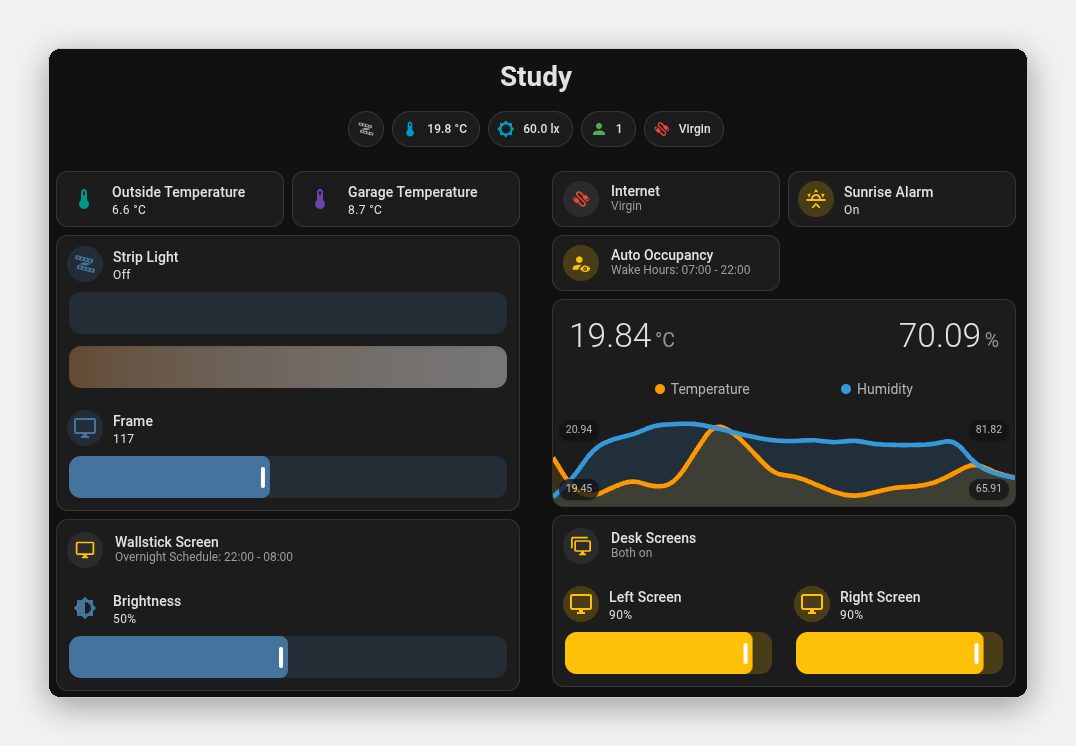
A Mushroom template badge shows occupancy as 1 or 0, which is the fastest way to see whether the sensor agrees you’re there:
- type: custom:mushroom-template-badge
  entity: binary_sensor.desk_presence_occupancy
  content: "{{ 1 if is_state('binary_sensor.desk_presence_occupancy', 'on') else 0 }}"
  icon: "{{ 'mdi:account' if is_state('binary_sensor.desk_presence_occupancy', 'on') else 'mdi:account-outline' }}"
  color: "{{ 'green' if is_state('binary_sensor.desk_presence_occupancy', 'on') else 'grey' }}"
The arm switch is a button-card (same approach as the baby sleep tog widget) whose second line reads the wake hours straight from the two input_datetime helpers. Change the helper and both the label and the automation follow:
- type: custom:button-card
  entity: input_boolean.auto_occupancy
  name: Auto Occupancy
  show_label: true
  label: >-
    [[[
      if (entity.state !== 'on') return 'Off';
      const t = (e) => (states[e]?.state || '--:--').slice(0, 5);
      return `Wake Hours: ${t('input_datetime.auto_occupancy_wake_from')} - ${t('input_datetime.auto_occupancy_wake_until')}`;
    ]]]
  tap_action:
    action: toggle
  hold_action:
    action: more-info
The temperature graph next to it is the same mini-graph-card setup as the other rooms, with its title hidden (show: {name: false, icon: false}) to make room for the extra row of tiles.
Troubleshooting
| Symptom | Likely cause |
|---|---|
| Occupancy always clear | SwitchBot sensor never set up in the app. Do the one-off setup |
| Sensor not discovered at all | Bluetooth proxy in passive scan mode; set the ESPHome entry to active |
| Away runs but nothing restores | Outside wake hours, or snapshot empty (check input_text.study_snapshot) |
| Monitors wake very dim | Monitor kept the last fade step. Add the wake-at-90% automation |
| Restore and fade fight each other | Automation not in mode: restart, or the back branch doesn’t stop the away script |
| A monitor “off” but still lit | Some monitors ignore DDC standby from certain inputs. Test sleep and wake at the desk first |
What it actually saves
I haven’t put a meter on any of this yet, so these are estimates from typical figures, not readings from my own plugs:
| Thing | Assumed draw when on |
|---|---|
| Two desk monitors | 25 W each |
| Wall screen (the monitor, not the Compute Stick, which stays on) | 20 W |
| Hue strip | 10 W |
| Photo frame, dimmed rather than off | about 2 W saved |
| Total | about 80 W |
Standby draw is a fraction of a watt per monitor, so I’ve ignored it.
At 30p per kWh, if the room is empty for 20 minutes a day while the automation is armed:
- 0.08 kW × ⅓ h = about 0.027 kWh a day
- × 365 = 9.7 kWh a year
- × £0.30 = £2.92 a year
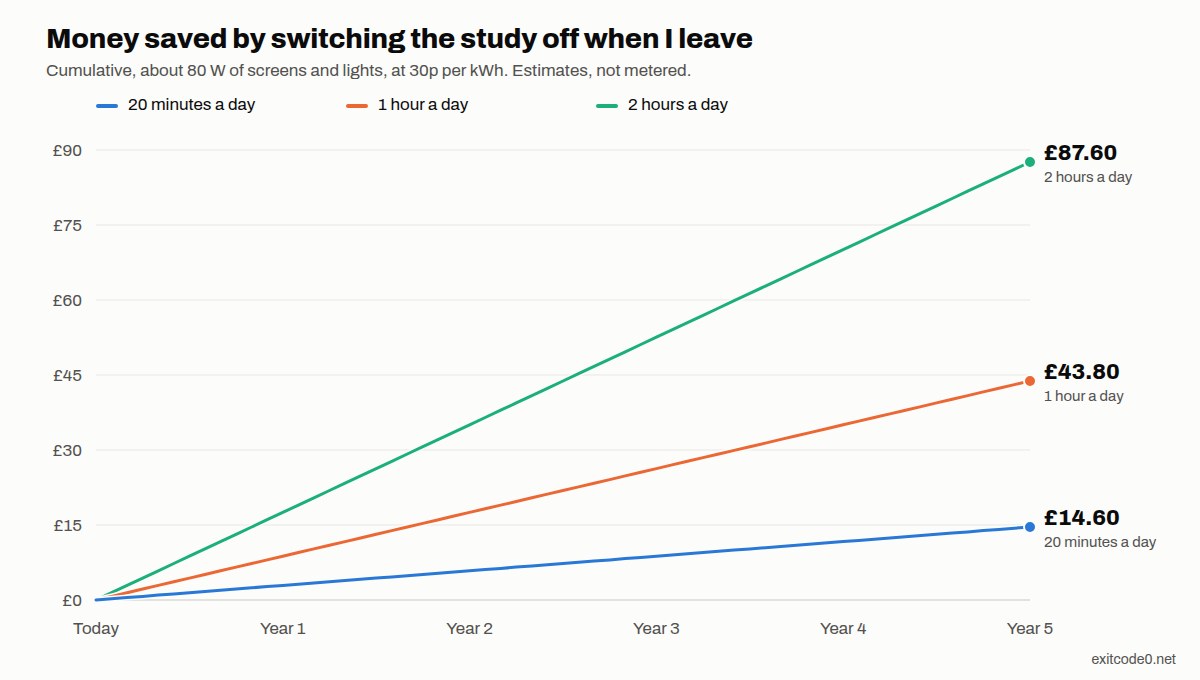
That’s a coffee, not a holiday. The number that matters is how long the room actually sits empty with everything lit. Twenty minutes is a couple of coffee breaks. A lunch hour, a school run or an afternoon of meetings elsewhere in the house pushes it up quickly:
| Room empty per day | kWh a year | Per year | Over 5 years |
|---|---|---|---|
| 20 minutes | 9.7 | £2.92 | £14.60 |
| 1 hour | 29.2 | £8.76 | £43.80 |
| 2 hours | 58.4 | £17.52 | £87.60 |
To work out your own, multiply your total watts by the minutes away per day, then by 365, then by your price per kWh, and divide by 60,000. A smart plug with energy monitoring on the desk’s power strip (the TP-Link HS110 does it, and its LED can be turned off so it doesn’t light the room either) will give you a real wattage instead of my guesses, and Home Assistant’s energy dashboard will then show you the actual saving.
Honestly, it won’t pay for itself fast. I’d build it again anyway for the fade, and for never walking back into a lit, empty room.
Two evenings and a morning
The point was energy, and the honest saving at 20 minutes a day is about £3 a year. Four screens and a light strip that used to stay on through every coffee break now go dark within a minute, though, and that adds up as the empty hours do. The part I didn’t expect to like most is the fade. Everything dimming over about 25 seconds as I walk out makes it feel deliberate, rather than as if the room crashed. Both morning bugs came from treating “on” as something stored in Home Assistant, when the monitors keep their own brightness and the PC sometimes isn’t there to answer.
Or just hand this page to your agent
If you’d rather have an agent build this for your own room (I run mine through Claude Code on a Tailscale dev VM):
Read https://exitcode0.net/posts/home-assistant-presence-sensor-desk-screens/ and set up the same presence-based fade-out and restore in my Home Assistant. First list the entities you plan to use (presence sensor, lights, screen switches, brightness numbers, light sensors) and ask me to confirm each one, because mine won't match the example IDs. Ask me for my wake hours, which devices should only restore when it's dark, and which should dim rather than turn off. Back up automations.yaml and scripts.yaml before editing, show me the full YAML before saving it, and run the away script once while I'm watching before arming the automation. Don't change any device's own schedules or settings.
The page gives the agent the helpers, the automation, both scripts, the monitor wake fix and the adaptive brightness curve. Only you know your entity IDs, what time you want the room to stay dark, and which of your screens can’t be woken once they’re properly off.
Set the delay to 10 seconds, walk out and back in a few times, and watch the logbook. That’s the quickest way to trust it.
Enjoy. ✌️