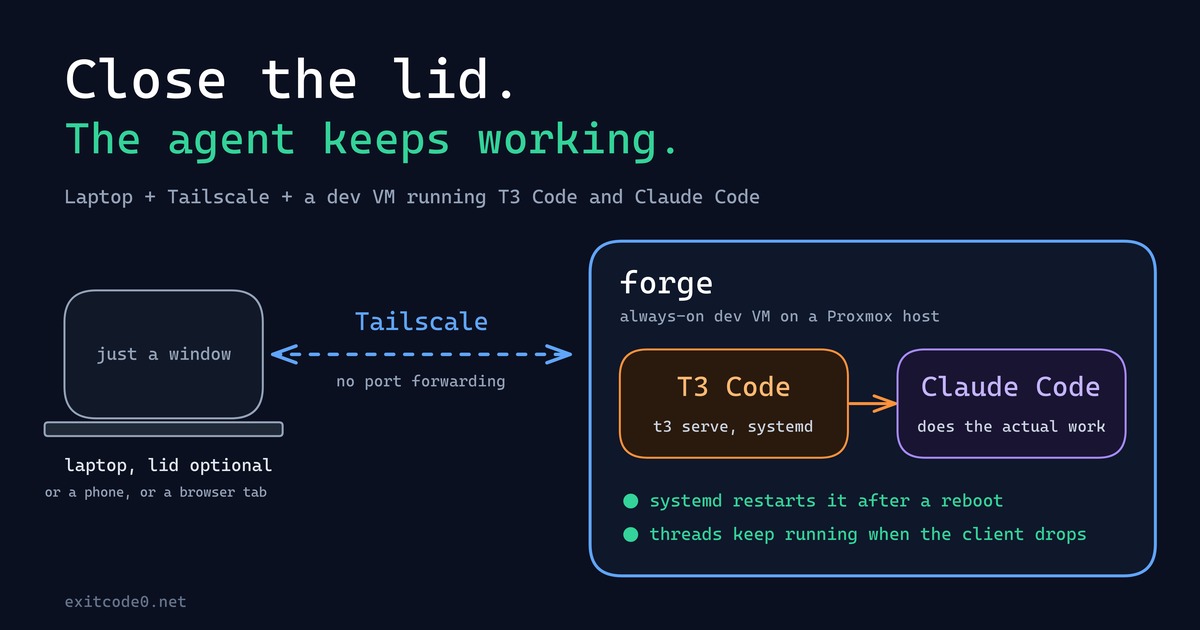
For about as long as I’ve been doing this, my laptop has been the computer: the IDE, the Docker daemon, forty browser tabs, all of it running locally, all of it dying the second the battery does or the lid has to close for a meeting. That model finally broke this year - not because of some clever trick, but because I moved the actual computer off the laptop entirely. The laptop’s job now is to open a window onto a machine that never sleeps, never loses its state, and honestly doesn’t care what OS it’s running.
Here’s the setup, what it’s given me, and why it’s letting me strip a load of bloat off Windows instead of needing a beefier laptop - with a proper OS swap queued up for later, once I’m confident there’s nothing left on the laptop that actually needs Windows.
The bit that changed: a dev VM that never sleeps
The core of this is a small always-on VM I call forge, sat on a Proxmox host at home - 6 cores, 16GB RAM, 100GB disk, nothing exotic. It runs Ubuntu Server LTS, and its entire job is to be the place where work happens: persistent terminal sessions, containers, long-running agent jobs, git remotes. The laptop never runs any of that directly.
The VM itself is almost incidental - the piece actually doing the work is t3 serve, running as a systemd background service on forge. A stable network connection keeps a connection alive; it doesn’t keep a session alive if the client disconnects or the VM itself reboots. Because systemd owns the service, it comes back on its own after a reboot with no input from me, and every environment, project, and agent thread it’s serving is exactly where I left it the moment it’s reachable again.
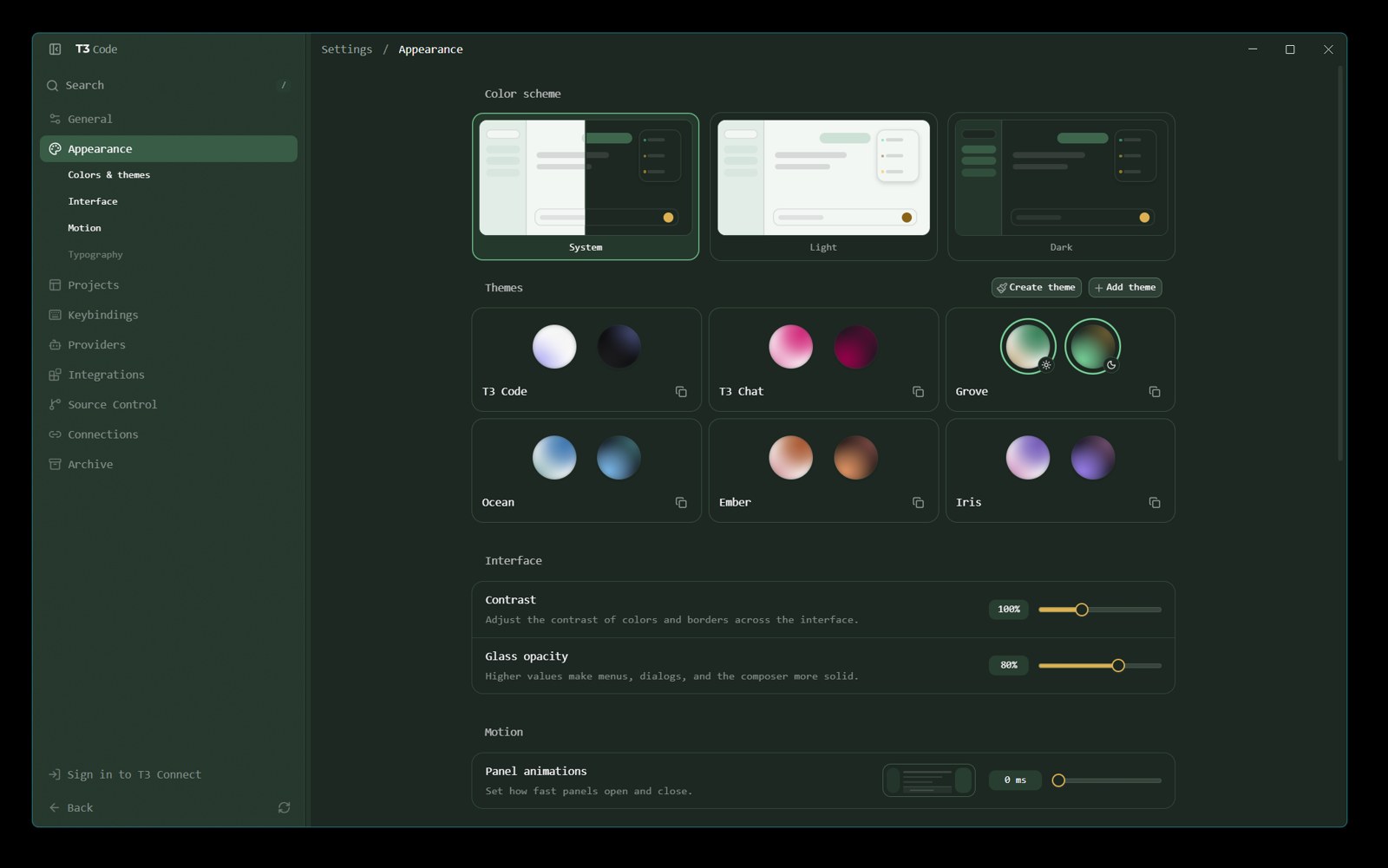
T3 Code in dark mode. Grove’s my current pick.
Reaching it from anywhere: Tailscale
None of this works if getting to the VM means fiddling with port forwarding or VPN configs every time you change networks. Tailscale solves that the same way it solves it for Home Assistant in that post: it gives the VM a stable address that resolves the same way whether you’re on the home LAN, tethered on a phone, or on hotel wifi.
That address is also what T3 Connect actually uses. I’m not on the cloud/account-based version of T3 Connect - the desktop and mobile apps pair directly with forge over the tailnet, so as long as the device I’m on is joined to the same tailnet, it can reach the environment. No port forwarding, no separate tunnel to maintain.
One wrinkle worth mentioning if you’re doing this alongside a work laptop: you can run two separate tailnets on one box at once - a personal one and a work one - without them fighting over routes, as long as one of them runs in userspace-networking mode (no TUN interface, no routes installed, just a local SOCKS5 proxy). That’s how I keep a personal dev VM and a work tailnet coexisting on the same machine without either one stepping on the other’s 100.64.0.0/10 address space.
What actually does the coding: T3 Code
The VM is just the base. What runs on top of it is T3 Code, and the mental model took me a minute to click into:
- Environment = a machine running the T3 backend. You choose this once, when you create a project.
- Project = a directory on that environment.
- Thread = an agent conversation, which always runs on whichever environment owns the project.
Once that clicked, the confusing part went away: a thread on a forge project is already running on forge. There’s nothing to attach to and nothing to sync - the phone, the laptop, and the browser tab are all just different windows onto the same running agent, on the same machine, mid-task. Close the laptop mid-run, open the phone, and it’s the same conversation, same file state, same terminal.
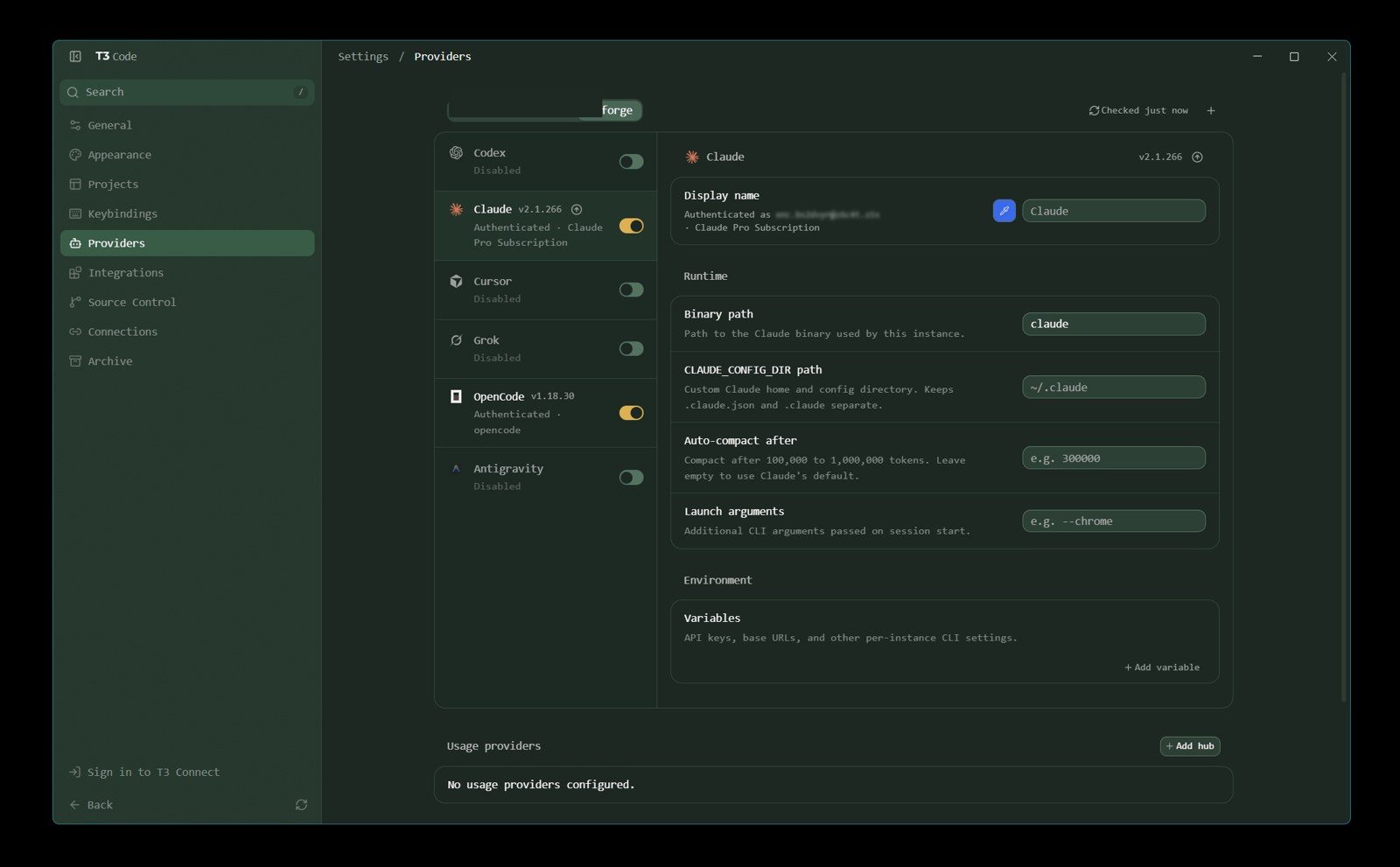
Claude, authenticated once, running against the forge environment.
And the part that made this worth writing up: this whole loop - persistent VM, Tailscale, T3 Code, Claude Code doing the actual work - runs on a single Claude Pro subscription. No metered API key, no per-token bill that creeps up the longer an agent run goes, no separate infrastructure cost beyond the VM I was already paying the electricity for. If you’ve been reluctant to run long agentic coding sessions because of where the API bill might land, this sidesteps that entirely.
If you’re the type who wants Claude Code to also see live container logs rather than copy-pasted output, I covered a related trick for that over in giving Claude Code eyes inside your Docker containers - same underlying idea of piping real session context to the agent rather than manually relaying it.
What this means for the laptop itself
Here’s the knock-on effect I didn’t fully expect going in. Once the VM does the actual work, the laptop’s job shrinks down to: a browser, a terminal, and occasionally something with a GUI. All the reasons I’d historically needed Windows on a laptop - Docker Desktop, WSL2, an IDE with real compute behind it - are now server-side. The laptop doesn’t need to be a workstation anymore. It needs to be a window.
Right now that just means stripping Windows down rather than replacing it. Docker Desktop’s gone, WSL2’s gone, and so is anything else that was only on there to give the laptop enough local horsepower to be a workstation. Less background service churn, less fan noise, noticeably better battery life - same laptop, doing a lot less.
Longer term, that’s what opens the door to something like Omarchy (an opinionated Arch + Hyprland desktop) replacing Windows outright rather than just being decluttered on top of it. Omarchy is a desktop-first choice, not a headless one - its mandatory disk-unlock prompt on boot is exactly why it’d stay off the VM even once I’m running it, since that prompt would block every unattended reboot on a machine that’s supposed to survive reboots unattended. I haven’t made that jump yet - still on Windows for now, just a much lighter one - but it’s the obvious next step once nothing left on the laptop actually needs it.
Getting files from the laptop to forge
The one thing a thin client makes awkward is moving files. I hit it straight away with the screenshots for this post, and uploading through a browser every time got old fast. The fix is a Send To entry in the Windows right-click menu that copies whatever you’ve selected into an inbox folder on forge, over the tailnet.
It uses scp, so forge needs sshd running with the sftp subsystem enabled and an inbox folder in your home directory. I keep sshd on key auth only. Swap you for your own username wherever it appears below.
1. Test the connection
In PowerShell:
ssh you@forge "echo it works"
The first connection asks you to trust the host key. Compare the fingerprint it shows with the output of ssh-keygen -lf /etc/ssh/ssh_host_ed25519_key.pub on forge before you type yes. If it asks for a key passphrase, see step 4. If it asks for a password, the key isn’t being offered.
2. Create the script
Save this as C:\Users\you\bin\send-to-forge.cmd, creating the bin folder if needed:
@echo off
setlocal enabledelayedexpansion
set DEST=you@forge:inbox/
if "%~1"=="" (
  echo Nothing selected.
  timeout /t 2 >nul
  exit /b 1
)
set FAILED=0
for %%F in (%*) do (
  echo Sending %%~nxF
  scp -p "%%~F" "%DEST%" || set FAILED=1
)
if "!FAILED!"=="1" (
  echo.
  echo One or more files failed.
  pause
) else (
  timeout /t 1 >nul
)
scp -p keeps the original timestamps, which helps when you’re matching screenshots to when you took them. Selecting several files works, and the window closes on its own unless something fails.
3. Add it to the Send To menu
- Press Win+R, type
shell:sendtoand press Enter. - Right-click in that folder, choose New, then Shortcut.
- Point it at
C:\Users\you\bin\send-to-forge.cmd. - Name it
forge inbox.
Now right-click any file, choose Send to, then forge inbox. Files land in ~/inbox on forge with their real names.
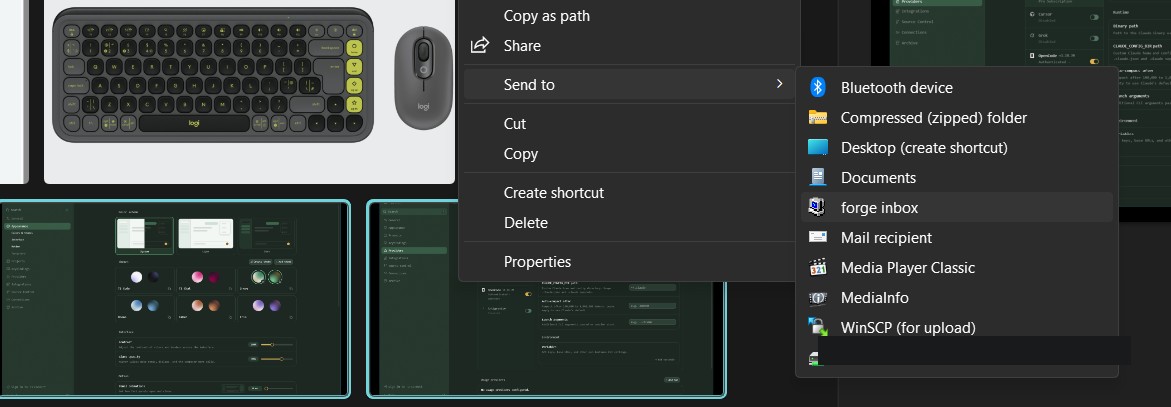
Right-click, Send to, forge inbox. The file’s on the VM a second later.
4. If it asks for a passphrase every time
Windows ships an ssh-agent that can hold the key. In an admin PowerShell:
Set-Service ssh-agent -StartupType Automatic
Start-Service ssh-agent
ssh-add $env:USERPROFILE\.ssh\id_ed25519
That’s one passphrase per reboot instead of one per file.
Note: The
forgehostname relies on MagicDNS being on. Without it, use the VM’s tailnet IP in the script instead. The transfer runs over the tailnet, so it works away from home too.
Because the inbox is just a folder on forge, the agents running there can read from it straight away.
What’s still local
A few caveats before you assume this fixes everything:
- You still need a decent local terminal/browser and, ideally, low input latency - this is a thin client model, not a fully offline one.
- No tailnet, no work. If home internet or the VM itself is down, there’s no local fallback mid-task. In practice that’s been rare, and reconnect time when it does hiccup is closer to a second than a support ticket.
- This assumes you’re already comfortable living in a terminal. If your work is GUI-heavy creative software, this specific setup isn’t solving your problem.
Quick reference: what runs where
| Laptop | Dev VM (forge) | |
|---|---|---|
| OS | Windows, stripped down (Omarchy planned) | Headless server LTS |
| Runs | Browser, T3 Code app, general terminal use | t3 serve (systemd), Docker, git, the actual agent work |
| Survives reboot of the other? | Yes - VM keeps running | Yes - laptop can vanish entirely |
| Reconnect cost | Near-instant | n/a |
Where this goes next
A couple of things have already shipped out of this setup. CarSearch - a free tool that reads a Google Timeline export, picks out a car, and shows which UK clean-air, low-emission, and congestion zones you actually drive through, and what they’d charge you - was built entirely on forge. So was the latest round of updates to Smart Home Index, the DataSolace resource for finding and comparing smart home IoT devices.
If you’re weighing whether to go looking for local compute to run agents against instead, it’s also worth reading running Ollama in a Proxmox LXC with GPU passthrough - a genuinely useful complement for the parts of this workflow where a frontier model is overkill.
The same goes for cheap subagents doing research on the VM. Two Haiku subagents gave me confident answers that included an invented policy quote, which is why I now check a cheap subagent’s research before I believe it.
None of this is really about Tailscale, T3, or Claude Code specifically. Once your dev environment is reachable and persistent, the device in front of you stops needing to be powerful. It just needs to be a window. Everything downstream of that - what OS it runs, how long the battery lasts, whether you can leave it at home for a week - gets a lot more flexible.