I run Claude Code on a dev VM and drive it from T3 Code on whatever I’m sat at. The dumb terminal post covers that setup. It works well until you have a few threads going, look away, and miss the one that’s been sitting on a question.
So I wanted voice control in both directions: say the prompt, hear the reply. The catch is that Claude Code runs on a headless server, and the microphone and speakers are on my Windows PC. Claude Code’s own /voice needs a local microphone and only covers the talking-to-it half. I built the other half. voiceloop is a free, open-source Windows app that reads Claude Code’s replies aloud on your PC, wherever Claude Code is running. It lives at voiceloop.dev, with the code on GitHub.
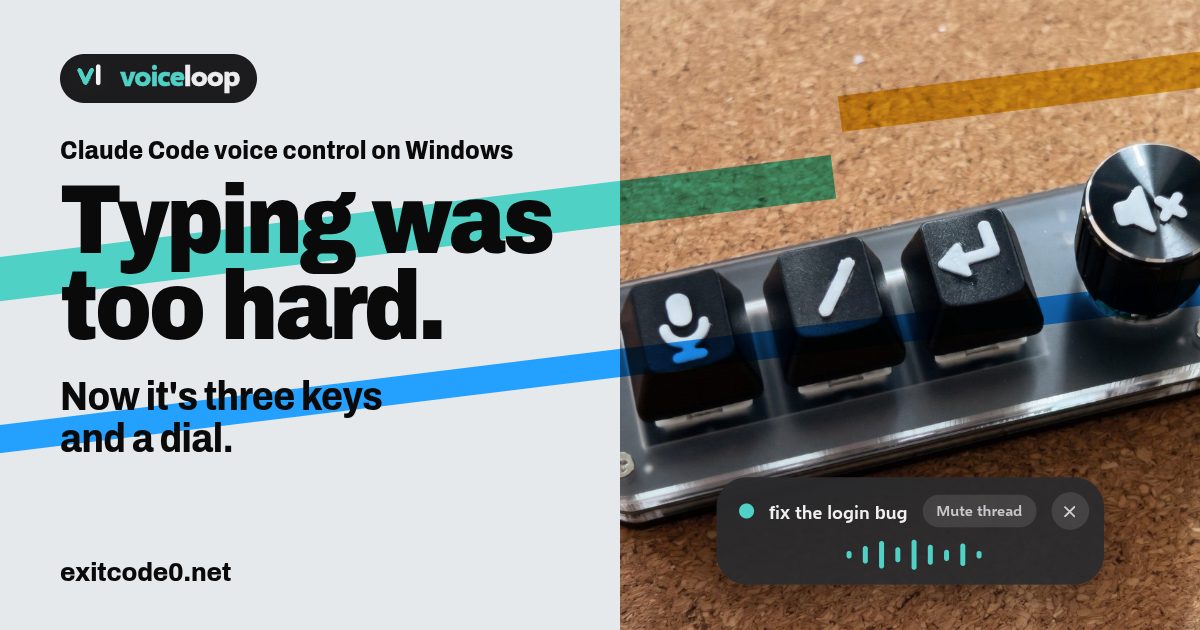
Then, because typing to an AI agent had apparently become too much effort, I put the whole thing on an £11 macropad. Three keys and a dial. We’ll get to that.
Short version: Claude Code voice control on Windows takes two free tools. Handy does speech-to-text on your PC and types into T3 Code, a terminal or anything else with a cursor. voiceloop does text-to-speech: a Claude Code hook sends each finished reply to your PC, and Kokoro turns it into speech. Both run on your own hardware, and both work when Claude Code runs on a different machine.
Doesn’t Claude Code already have voice mode?
Sort of. Claude Code has /voice, a built-in dictation mode: hold Space, talk, and the words stream into the prompt. If Claude Code runs in a terminal on the machine you’re sat at, try it first. Three things ruled it out for me:
- It’s speech-to-text only. Claude never talks back.
- It needs a local microphone. Anthropic’s docs say it “does not work in cloud sessions or SSH sessions”, and my Claude Code lives on a server.
- It needs a Claude.ai login, and your audio goes to Anthropic’s servers for transcription. With an API key, Bedrock or another cloud provider, it isn’t available.
VoiceMode is the best-known add-on. It does full two-way spoken conversation over MCP, with speech-to-text built in, but it plays audio on the machine Claude Code runs on. My server doesn’t have speakers.
T3 Code has its own dictation in its macOS and iPhone apps. On Windows I use Handy, which types into T3’s composer like it would any other window.
Claude Code /voice | VoiceMode | Handy + voiceloop | |
|---|---|---|---|
| Speak your prompts | Yes, hold Space | Yes | Yes, with Handy, in any window |
| Hear replies read aloud | No | Yes | Yes |
| Speech-to-text runs on | Anthropic’s servers | Local Whisper, or OpenAI’s API | Your PC, offline |
| Claude Code over SSH | No, it needs a local mic | Plays audio where Claude Code runs | Yes, sound plays at your desk |
| Cost | Needs a Claude.ai login | Free, open source | Free, open source (MIT) |
What voiceloop does
- Reads each reply aloud once Claude finishes, starting about 1.3 s after the reply lands, even for long ones.
- Plays three rising notes before a question (
AskUserQuestion) and a ding-dong-ding when Claude needs permission, so you know to look without reading anything. - Skips code blocks, tables and URLs.
/resendcomes out as “slash resend” and~/code/projectas “project”. - Shows a small pill on screen while it talks, with the thread’s name and bars that follow the speech.
- By default only the thread you last typed into speaks.
/mutesilences a thread, and/resendreads the last reply again. - Stays quiet while the PC is locked.
- Works with Kokoro out of the box, or any speech server with an OpenAI-style
/v1/audio/speechendpoint. - Sets up a cheap 3-key macropad with no vendor software: dictate, slash command, send, and a knob for volume and stop.
It only speaks. Listening is Handy’s job, or whatever dictation tool you already use.
How the pieces fit
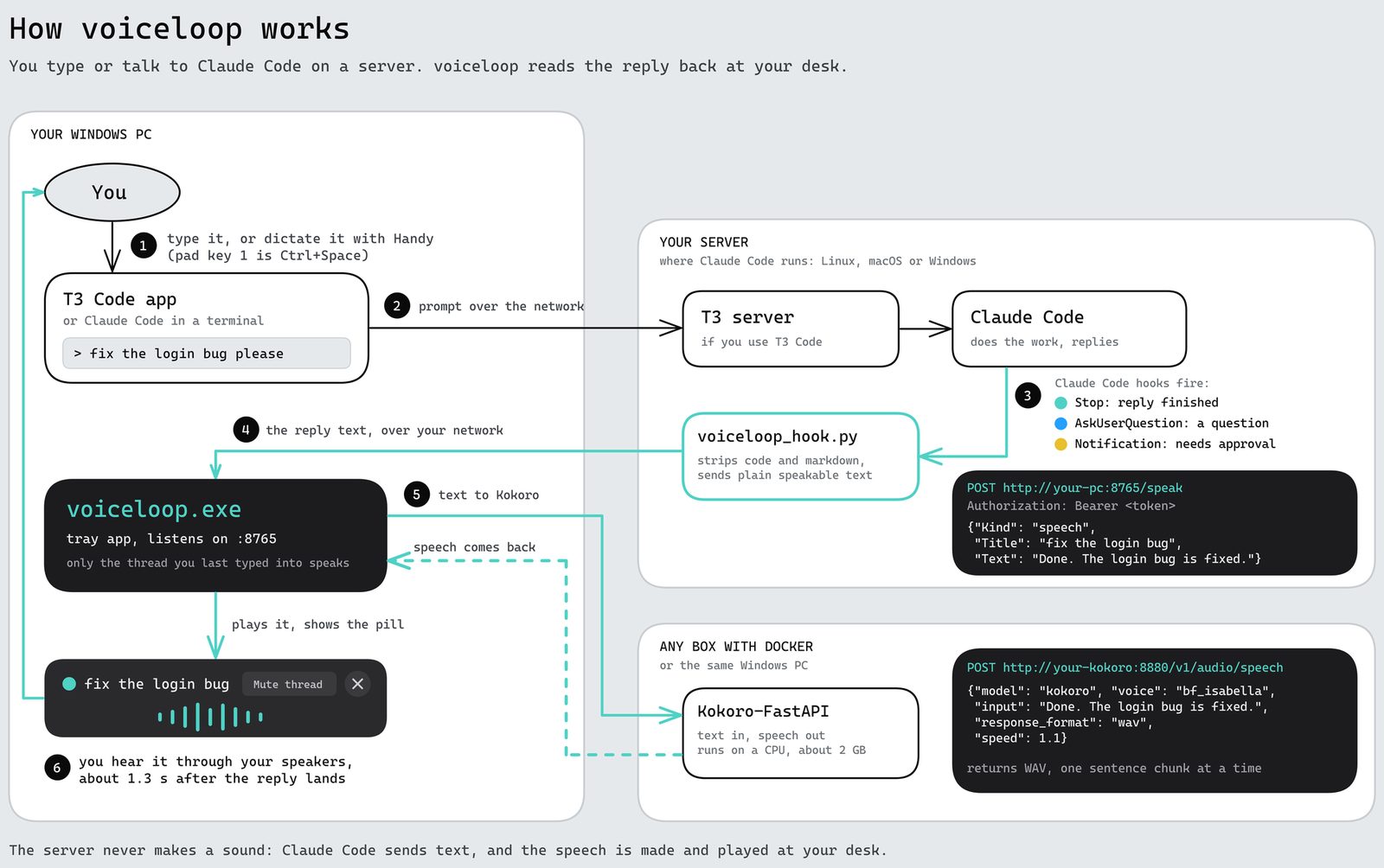
Three parts, which can sit on one machine or three:
| Part | Runs on | Needs |
|---|---|---|
voiceloop.exe | Windows 10 or 11, 64-bit | Nothing else. It’s a single 9 MB exe |
voiceloop_hook.py | Wherever Claude Code runs: Linux, macOS or Windows | Python 3.8 or later, standard library only |
| Kokoro-FastAPI, or another speech server | Any box with Docker | About 2 GB of memory for Kokoro. A CPU is enough |
The hook listens for Claude Code’s Stop, PreToolUse (for AskUserQuestion), Notification and UserPromptSubmit events. It strips the markdown and sends plain text to the exe as a POST /speak on port 8765 with a bearer token. The exe asks Kokoro for speech one sentence at a time and plays each chunk while the next one is made. The server never makes a sound.
Set up Claude Code text-to-speech with voiceloop
1. Start Kokoro
Kokoro-FastAPI wraps the 82M-parameter Kokoro model in an OpenAI-style /v1/audio/speech endpoint. No API key, no account. Run it on the PC itself with Docker Desktop, or on any box with spare CPU. The repo has a compose file in kokoro/, or as a one-liner:
docker run -d --name kokoro-tts --restart unless-stopped \
  --memory 3g --memory-swap 3g --cpus 3 \
  -p 8880:8880 ghcr.io/remsky/kokoro-fastapi-cpu:v0.10.0

curl http://localhost:8880/health
The first start pulls about 3.3 GB, and the model takes a little under a minute to load. Use v0.10.0 or later. Older versions leak memory, which I found out the slow way. More on that below.
Note: Kokoro-FastAPI has no authentication. Keep port 8880 on your LAN or tailnet.
Already run a different speech server? From 0.8.2 any server with an OpenAI-style /v1/audio/speech endpoint works. Settings, Voice takes an address, a model name and an optional API key. I’ve tested Speaches with a Piper voice, so if you liked the voices from my Wyoming Piper post, you can have them read your Claude Code replies too. The repo’s docs/kokoro.md has the settings.
2. Install voiceloop on the Windows PC
Apologies up front: I don’t have a code-signing certificate. I’m an indie dev offering a fix for a problem that probably doesn’t exist outside my own lab. If you rightly have trust issues, have your agent review the code in the repo before you run anything, and if it finds a problem, please raise a security issue.
Download
voiceloop-<version>-windows.zipfrom the releases page and unzip it. 0.8.2 is the latest as I write this.Right-click
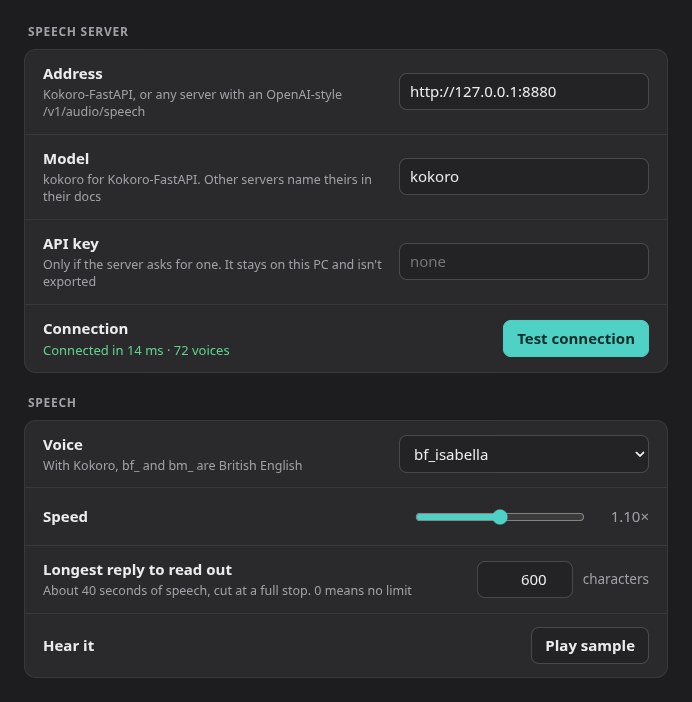
install.ps1and choose Run with PowerShell. To let only your Claude Code machine through the firewall, run it from an administrator PowerShell instead:powershell -ExecutionPolicy Bypass -File install.ps1 -HookFrom 192.168.1.20Settings opens. Under Voice, enter Kokoro’s address (
http://127.0.0.1:8880if it’s on this PC), press Test connection and pick a voice.bf_andbm_voices are British.
The exe isn’t code-signed, so SmartScreen will say it “protected your PC”. More info, then Run anyway. Each release lists the SHA256 if you want to check the download first. It installs to %LOCALAPPDATA%\VoiceLoop, starts at logon and adds a Start menu entry. install.ps1 -Uninstall takes it all back out.
3. Pair the hook
On the machine that runs Claude Code, clone the repo or copy hooks/voiceloop_hook.py somewhere it can stay. In voiceloop, open Settings, About, pick the address the Claude Code machine can reach, and press Copy command. Paste it next to the hook:
python3 voiceloop_hook.py setup --url http://192.168.1.50:8765 --token 3f9c...
That saves the address and token to ~/.config/voiceloop/hook.json, adds four hooks to ~/.claude/settings.json after taking a dated backup, and sends a test phrase. You should hear it. Start a new Claude Code session and replies are read out from then on.
python3 voiceloop_hook.py test sends the phrase again, and python3 voiceloop_hook.py remove takes the hooks back out.
4. Add speech-to-text with Handy
That’s the replies sorted. For the prompts, I use Handy: free, open source and offline. Press its shortcut, talk, and it pastes the text into whatever window has focus. It runs Whisper or Parakeet models on your own PC, so no audio leaves the house. It’s the same Whisper as my Home Assistant speech-to-text setup, in a desktop app with a hotkey. On Windows:
winget install cjpais.Handy
Because Handy types into the focused window, it doesn’t care where Claude Code runs. T3 Code’s composer, Windows Terminal running SSH and VS Code all look the same to it. That’s the part /voice can’t do over SSH. Any other dictation tool that types into the focused window will do the same job.
voiceloop reads Handy’s shortcut from its settings, so the macropad’s dictate key follows it (Ctrl+Space by default). If you send with the pad’s Enter key, turn off Handy’s Auto Submit (in its Advanced settings) so you can check the text before it goes.
Voice control in T3 Code on Windows
T3 Code is where this setup earns its keep, because that’s where I have several Claude Code threads running at once.
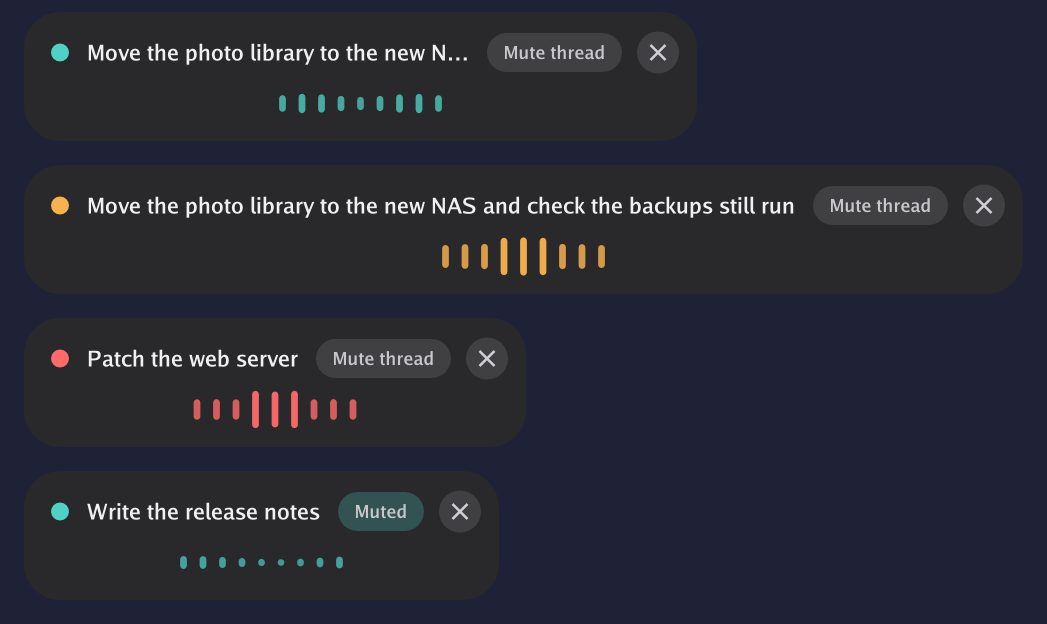
The pill sits in a corner while voiceloop talks. With T3 Code it shows the thread’s name, which the hook reads from T3’s database (read-only). With plain Claude Code it shows the project folder. Teal is a finished reply, amber a question, coral a permission prompt. The ✕ stops playback, and Settings, Pill sets the monitor, corner, size and colours.
Only the thread you last typed into speaks by default, so four agents finishing at once don’t talk over each other. The others still show up in Settings, Threads, where you can mute them one by one or have every unmuted thread take its turn. In any session you can type:
/muteand/unmutefor the current thread/resend,/repeator/replayto hear the last reply again
voiceloop handles these itself, and Claude never sees them. Dictating “slash mute” works too.
The macropad: three keys and a dial
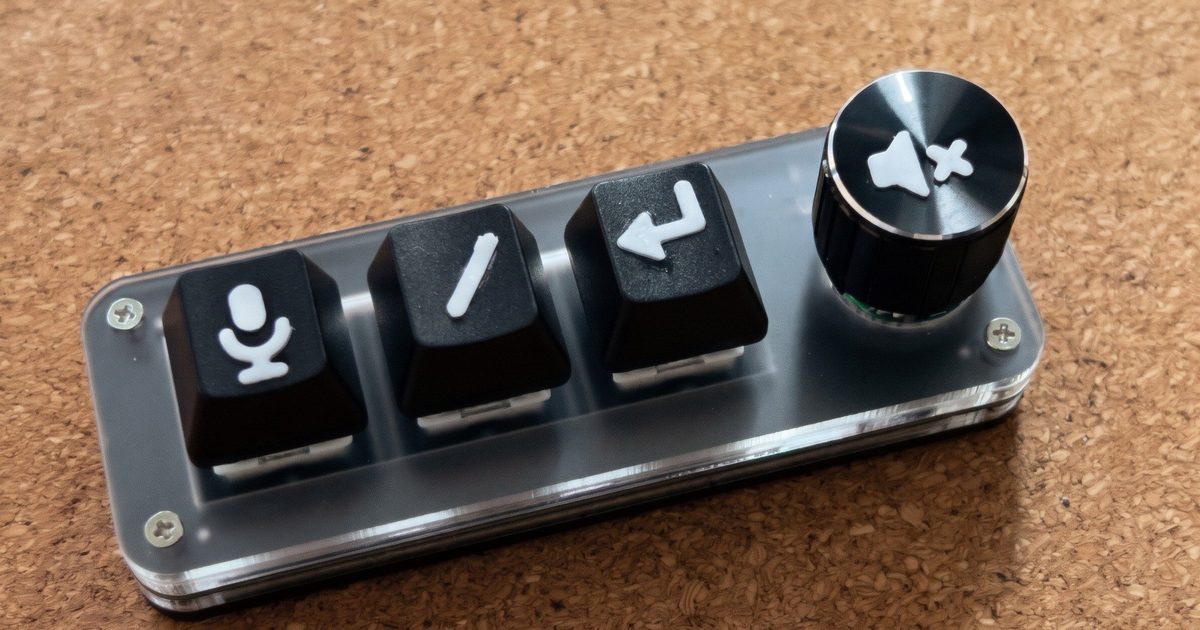
voiceloop also sets up a 3-key USB pad with a knob, so dictate, send and stop are all under one hand. The default key map:
| Control | Does |
|---|---|
| Key 1 | Starts and stops dictation in Handy (its own shortcut, Ctrl+Space by default) |
| Key 2 | Starts dictation and types /, for slash commands |
| Key 3 | Enter, to send |
| Knob turn | Volume down and up |
| Knob press | Stop speech |
Get the pad on Amazon UK. It was about £11 when I wrote this. As an Amazon Associate I earn from qualifying purchases. The same pad sells under plenty of brand names, so if that listing has gone, look for a “3 key macropad with knob” and check its USB ID is 1189:8890 once it’s plugged in.
You program it from Settings, Macropad: pick an action per key and for the knob, then Upload to pad. The key map lives on the pad, so it works on any PC afterwards. voiceloop talks to it through Windows’ own HID driver, so there’s no driver to install and no admin rights. The protocol is ported from ch57x-keyboard-tool by kriomant (MIT or Apache-2.0).
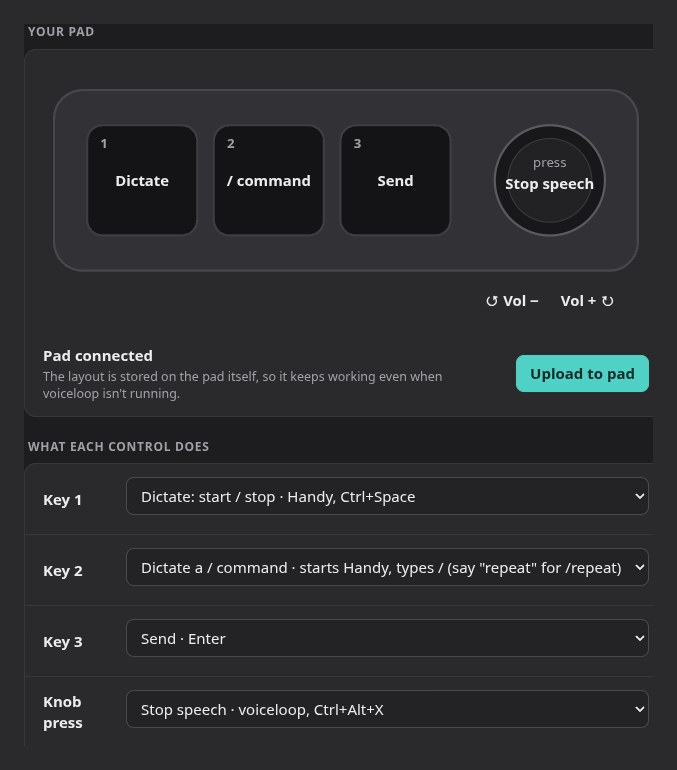
Got a different CH57x pad? Each pad model is described by an XML profile, and the pad-profile guide shows how to write one for yours.
Printed key symbols
Three identical black keys are easy to mix up. The same Settings tab exports flat symbols as an STL: pick an icon per key, then Export STL…. Mine printed cleanly at 9 mm in two 0.2 mm layers of white PLA, glued on. If you’ve not printed anything with Claude Code’s help before, the OpenSCAD sensor mount post is a gentler start.
I’m aware of where this leads.

Still from Idiocracy (2006, dir. Mike Judge, 20th Century Fox): the St. God’s hospital keyboard. Vibe coding with a keyboard was too hard, so now I just have three buttons and a dial.
Things that tripped me up
Kokoro kept getting killed. I blamed the memory cap first and raised it from 2.5 GB to 3 GB. That only bought time. Kokoro-FastAPI v0.9.x keeps about 40 MB more for every request until it restarts (issue #594). On my TTS box Docker didn’t enforce --memory-swap, so the growth spilled into swap and reached 4.6 GB after seven hours. With 15 identical requests, v0.9.2 went from 1.2 to 1.8 GB and kept climbing, while v0.10.0 levelled off at 1.35 GB. Use v0.10.0. voiceloop also retries for about 20 seconds if Kokoro restarts mid-reply.
One request per reply was too slow. A 935-character reply took 19 seconds to synthesise as a single request on 3 cores of a Ryzen 5 5600. Splitting replies into sentence chunks and playing each one while the next is made brings the first word down to about 1.3 s.
The pad’s report ID. The pad’s second HID interface (MI_01) takes 65-byte writes, and the message already starts with report ID 0x03. Don’t prepend another report ID byte the way most HID write examples do.
Emoji in thread names. One of my T3 threads has an emoji in its name, and the pill showed a box where the 🧠 should be. Windows 11’s Segoe UI Emoji now uses COLRv1 colour glyphs, which Go’s font packages don’t draw. Release 0.8.1 has a small COLRv1 renderer for the pill, with gradients and all. It was a longer afternoon than one emoji deserves.

Edge app windows and downloads. The Settings panel runs in an Edge --app window, which saves downloads straight to Downloads without asking. So every export, whether a settings backup, a pad profile or an STL, goes through the native Save As dialog instead.
Security
- The hook talks to voiceloop over plain HTTP with a bearer token. Keep it on your LAN or a tailnet, and use
-HookFromso the firewall only lets the Claude Code machine in. - Anyone with the token can make your PC talk and mute threads. It’s in
config.jsonin the install folder, and inhook.json(mode 0600) on the Claude Code machine. - The Settings panel listens on
127.0.0.1:8766only, with a random key per run. - The hook reads T3 Code’s database read-only to find thread names. It sends nothing anywhere except the voiceloop address you gave it.
- If your speech server takes an API key, it stays on the PC and is left out of settings exports.
voiceloop is MIT-licensed and isn’t made by or affiliated with Anthropic.
Eyes off the screen
I built this to stop watching T3 threads for the moment one of them finishes. Now it’s key 1, say what I want, key 3, and look away. Three rising notes mean Claude has a question, the ding-dong-ding means it wants approval, and a press of the knob shuts it up.
It’s version 0.8.2 and it has run on exactly one Windows PC, mine. If it breaks on yours, or your pad isn’t the 1189:8890 one, open an issue. The pad cost about £11 and the symbols a few grams of PLA. Buy one through the link above and I get roughly 30p of it.
Or just hand this page to your agent
If you’d rather not do the setup by hand, give this to your agent:
Read https://exitcode0.net/posts/claude-code-voice-control-windows/ and set up voiceloop so Claude Code's replies are read aloud on my Windows PC. Before you start, ask me which machine should run Kokoro (or which speech server I already have), what address my Claude Code machine can reach the Windows PC on, and whether I use T3 Code. Don't pick ports or firewall rules without asking. Never expose ports 8765 or 8880 to the internet. Don't type the voiceloop token into chat or a log: I'll run the "Copy command" from voiceloop's Settings myself, or paste it straight into the terminal. Show me the hooks you're about to add to ~/.claude/settings.json before running setup, and check the dated backup exists afterwards. If I want dictation, tell me how to install Handy rather than changing its settings for me. If I have the macropad, don't upload a key map until I've confirmed the actions for each key.
The page gives the agent the Kokoro command, the installer steps, the hook setup and the slash commands. Only you know your machines’ addresses, where you want Kokoro to live, and the token voiceloop made on your PC.
Then look away from the screen for a bit. It’ll tell you when it’s done.
Enjoy. ✌️