A couple of weeks ago I asked Claude, via the Chrome extension on my Windows laptop, to find me the best-value used M1 MacBook Air on eBay. It was properly good at it. It searched with sensible filters, opened listings, read the descriptions for battery cycle counts and “cracked screen” small print, and left the three best tabs open for me to look through.
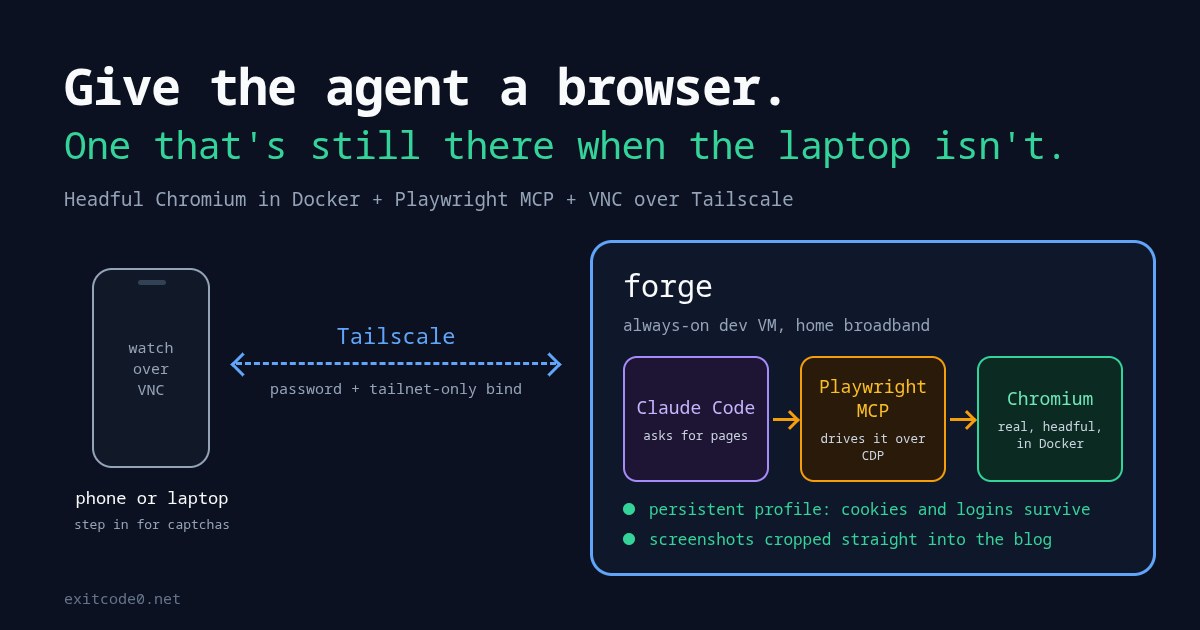
Then I tried to picture doing the same from my phone on a day I’ve left the laptop at home, talking to the agents on my always-on dev VM. There’s no browser there. Claude Code’s web fetch tool gets blocked or served a stripped-down page by most retailers, eBay included. So I gave the VM its own browser: a real, headful Chromium in a Docker container. Claude drives it through Playwright MCP, I can watch and take over from my phone over VNC, and it’ll crop screenshots straight into this blog. Every image in this post came out of it, the cover included.
The browser I thought I already had
T3 Code, which I covered in the last post, gives the agent a set of preview_* browser tools. I assumed they ran on forge, since that’s where the agent runs. So I opened eBay with them and checked the user agent:
Mozilla/5.0 (Windows NT 10.0; Win64; x64) ... T3Code(Alpha)/0.0.42 Chrome/152.0.7977.65 Electron/44.1.0
Windows NT and Electron. That preview tab lives inside the T3 desktop app on my laptop. It worked with the lid shut because the app was still running, but on a phone-only day it wouldn’t exist. So the browser needs to live on forge itself.
Why headful, and why not just headless Playwright
forge already had Playwright’s bundled Chromium from an earlier project. Headless Chromium is the obvious choice, and it’s also the thing bot-detection vendors are best at spotting. What I went for instead:
- A real, headful Chromium on a virtual X display, with no automation flags.
navigator.webdriverisfalse. - A persistent profile on a volume, so cookies, logins and whatever “trusted visitor” state a site builds up survive restarts.
- My home broadband IP. Residential IPs get far more slack than datacentre ones, which is a nice side effect of running this on a homelab box and not a VPS.
- A human override. When a site does throw a captcha, I open a VNC viewer on my phone and click through it myself.
A lot of anti-bot scoring is behavioural, so the agent’s skill file also tells it to use a site’s normal search pages and pause between them.
The container
Three files in ~/agent-browser. TigerVNC’s Xvnc is an X server and a VNC server in one process, which saves a separate Xvfb and x11vnc. Openbox is there so the window can be maximised and moved about when I’m viewing it.
# Google's Docker Hub mirror. Plain debian:trixie-slim works too if Hub is reachable.
FROM mirror.gcr.io/library/debian:trixie-slim

ENV DEBIAN_FRONTEND=noninteractive \
    TZ=Europe/London \
    LANG=en_GB.UTF-8 \
    LC_ALL=en_GB.UTF-8

RUN apt-get update && apt-get install -y --no-install-recommends \
      chromium chromium-sandbox tigervnc-standalone-server tigervnc-tools openbox \
      socat tini ca-certificates locales tzdata curl \
      fonts-noto-core fonts-noto-cjk fonts-noto-color-emoji fonts-liberation2 \
    && sed -i 's/^# *en_GB.UTF-8/en_GB.UTF-8/' /etc/locale.gen && locale-gen \
    && ln -sf /usr/share/zoneinfo/Europe/London /etc/localtime \
    && rm -rf /var/lib/apt/lists/* \
    && mkdir -m 1777 -p /tmp/.X11-unix \
    && useradd -m -u 1000 browser

COPY entrypoint.sh /usr/local/bin/entrypoint.sh
RUN chmod +x /usr/local/bin/entrypoint.sh

USER browser
WORKDIR /home/browser
EXPOSE 5900 9223
ENTRYPOINT ["tini", "--", "/usr/local/bin/entrypoint.sh"]
The entrypoint starts Xvnc, Openbox and Chromium, then keeps Chromium running in a loop so it comes back if it crashes or I close the window over VNC:
#!/bin/bash
# Xvnc (X server + VNC in one) -> openbox -> Chromium with CDP.
# Chromium's CDP only listens on loopback, so socat republishes it on :9223.
set -u
GEOMETRY="${GEOMETRY:-1920x1080}"
PROFILE=/profile

mkdir -p ~/.vnc
vncpasswd -f < /run/secrets/vnc_password > ~/.vnc/passwd
chmod 600 ~/.vnc/passwd

rm -f /tmp/.X1-lock /tmp/.X11-unix/X1
Xvnc :1 -geometry "$GEOMETRY" -depth 24 -rfbport 5900 -localhost no \
     -SecurityTypes VncAuth -PasswordFile ~/.vnc/passwd -AlwaysShared \
     -desktop agent-browser &
export DISPLAY=:1
for _ in $(seq 50); do [ -e /tmp/.X11-unix/X1 ] && break; sleep 0.1; done

openbox &
socat TCP-LISTEN:9223,fork,reuseaddr TCP:127.0.0.1:9222 &

# No GPU in the container, so WebGL comes from SwiftShader. A browser with no
# WebGL at all stands out to fingerprinting scripts.
# chromium-sandbox (setuid) keeps the sandbox on without needing userns in Docker.
# Chromium restarts itself if it crashes or someone closes the window over VNC.
# Clearing the singleton lock stops a stale one from a killed container
# blocking startup.
while true; do
  rm -f "$PROFILE"/Singleton*
  # Mark the last exit clean so Chromium doesn't show the "restore pages" bubble.
  [ -f "$PROFILE/Default/Preferences" ] && \
    sed -i 's/"exit_type":"Crashed"/"exit_type":"Normal"/' "$PROFILE/Default/Preferences"
  chromium \
    --user-data-dir="$PROFILE" \
    --remote-debugging-port=9222 \
    --remote-debugging-address=127.0.0.1 \
    --no-first-run --no-default-browser-check \
    --disable-dev-shm-usage \
    --use-angle=swiftshader --enable-unsafe-swiftshader \
    --lang=en-GB \
    --start-maximized \
    --window-size="${GEOMETRY/x/,}" \
    about:blank
  sleep 2
done
And the compose file:
# Persistent headful Chromium for Claude Code (Playwright MCP over CDP),
# with a VNC view for me.
services:
  browser:
    build: .
    image: agent-browser:local
    container_name: agent-browser
    restart: unless-stopped
    shm_size: 2g
    # Chromium's setuid sandbox needs this to create namespaces. The container
    # runs as uid 1000, so only the setuid chrome-sandbox helper can use it.
    cap_add:
      - SYS_ADMIN
    mem_limit: 4g
    environment:
      GEOMETRY: 1920x1080
    volumes:
      - ./profile:/profile
    secrets:
      - vnc_password
    ports:
      # VNC: the tailnet address only. Not on the LAN, not on 0.0.0.0.
      - "100.x.y.z:5900:5900"
      # CDP: forge loopback only. Anything that reaches this owns the browser.
      - "127.0.0.1:9222:9223"

secrets:
  vnc_password:
    file: ./vnc_password
Generate the VNC password and start it:
cd ~/agent-browser
umask 077
python3 -c "import secrets,string;a=string.ascii_letters+string.digits;print(''.join(secrets.choice(a) for _ in range(8)))" > vnc_password
mkdir -p profile
docker compose up -d --build
curl -s http://127.0.0.1:9222/json/version   # should return Chrome/...
It idles at around 310MB of RAM.
What tripped me up
“No usable sandbox!” Chromium’s sandbox wants user namespaces, and Docker’s default seccomp profile blocks them. The internet’s usual fix is --no-sandbox, but this browser is going to open whatever page an agent decides to click on, so I wanted the sandbox on. Installing chromium-sandbox (the setuid helper) and adding cap_add: SYS_ADMIN sorted it. The container runs as uid 1000, so an ordinary process gets no effective capabilities and only the setuid helper can use SYS_ADMIN.
No WebGL. With no GPU in the container, WebGL was missing entirely, and a bot-check page flagged it straight away. --use-angle=swiftshader --enable-unsafe-swiftshader gives it software WebGL. The renderer string now says SwiftShader, which a fingerprinting script could spot, but it’s far less odd than having no WebGL.
Docker Hub timing out. On the day I built this, registry-1.docker.io timed out from forge while everything else loaded fine. mirror.gcr.io/library/<image> is Google’s pull-through mirror of the official images and worked straight away, so the FROM line points there.
Keep CDP on loopback. Chromium’s DevTools port listens on 127.0.0.1 inside the container, socat republishes it so Docker can map it, and compose only publishes that on the host’s 127.0.0.1. Keep it that way: anything that can reach the CDP port controls the browser, logged-in sessions and all.
localhost isn’t the host. The browser lives in its own container, so localhost means the container. Dev servers on forge are reachable at the VM’s LAN IP, but only if they’re published on 0.0.0.0. Anything bound to 127.0.0.1 on the host is invisible to the browser. Either join the app’s compose network (docker network connect <net> agent-browser) or widen the bind.
Wiring it into Claude Code
Playwright MCP can attach to a running browser over CDP rather than launching its own. I installed a pinned version so every session doesn’t npx a fresh copy, then registered it at user scope, so every Claude Code session on forge gets the tools whatever project it’s in:
npm i -g @playwright/mcp@0.0.82
claude mcp add --scope user browser --   ~/.npm-global/bin/playwright-mcp   --cdp-endpoint http://127.0.0.1:9222   --output-dir ~/agent-browser/shots
New sessions get browser_navigate, browser_snapshot, browser_click, browser_evaluate, browser_take_screenshot and the rest. Snapshots are the accessibility tree with element refs, which costs far fewer tokens than screenshots, so the agent mostly works from those.
Tools on their own weren’t enough. I also wrote two skills in ~/.claude/skills/. browser covers how to share the browser with other sessions (open your own tab, close only your own, never call browser_close), when to hand over to me, and not to buy, bid or message anyone. deal-hunt has the shopping know-how: eBay filter URL parameters (LH_BIN=1, LH_ItemCondition=3000, LH_PrefLoc=1, _sop=15), what battery and condition wording to trust, red flags like a mismatched model number, and a top-3 report with clean links.
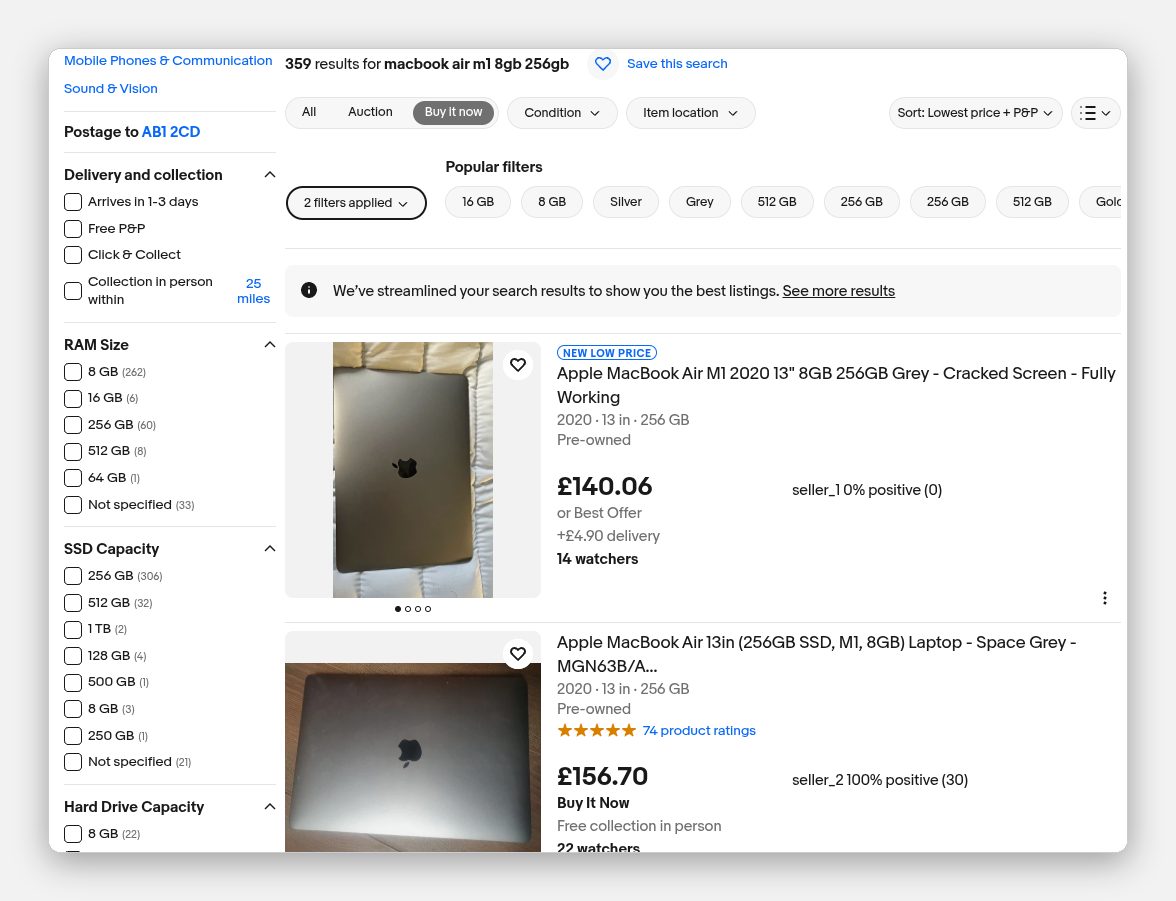
The cheapest result is “Cracked Screen - Fully Working”. This is why the skill makes it read past the price.
eBay threw a “Pardon our interruption…” challenge at one of the searches for this post. It cleared on its own in a couple of seconds and the results page loaded, with no help from me.
Watching it over VNC
I use RealVNC Viewer on my iPhone and laptop, and I was hoping to use a key pair. That doesn’t work: RealVNC Viewer only does key or certificate auth against RealVNC’s own server. Against any other VNC server it falls back to classic VNC password auth, which caps the password at 8 characters.
So the real protection is the network. Xvnc only listens on the VM’s tailnet address (100.x.y.z:5900 in the compose file above), not the LAN and not 0.0.0.0, and WireGuard encrypts the traffic. Save that address and the password in RealVNC’s address book and it’s one tap from the phone. When I tested it, all the eBay tabs Claude had left open were sitting there waiting for me to look through the photos.
Note: If your phone switches between tailnets, the VNC bind has to match the one it’s on. Mine lives on the same tailnet as T3, so if T3 connects, VNC does too.
Screenshots, straight into chat or the blog
This is the part I’ve been using most. browser_take_screenshot takes a filename, and a relative filename resolves against the working directory of whichever session called it. From a chat about some project, screenshots/thing.png lands in that project. Absolute paths outside the working directory are refused, which is sensible: a hostile page shouldn’t be able to talk an agent into writing files anywhere on the VM.
In T3, an image in the agent’s reply renders inline, so for a quick look the agent embeds the file’s absolute path and I don’t need to open VNC at all.
For anything that goes somewhere else, like this blog’s static/images/, the screenshot goes through a small Pillow script I called shotfmt. It crops, pixelates, adds a frame, resizes and compresses:
# 1200x630 cover, keeping the top of the page
shotfmt raw.png static/images/my-post.jpg --preset cover --focus top

# crop a region, add rounded corners and a shadow, cap at 1600 wide
shotfmt raw.png static/images/my-post-dashboard.jpg --box 0,95,1080,805 --frame --preset inline

# pixelate a region you can't clean up in the page itself
shotfmt raw.png out.png --blur 40,300,260,24
It refuses to overwrite an existing file without --force. The full script is at the end of the post.
Cookie banners and consent bubbles
The first screenshot I took of this blog’s home page had a cookie banner, Google’s “How your data is used” consent bubble and a Buy Me a Coffee button all over it. Removing elements with querySelector(...).remove() got rid of the banner, but the Google bubble lives inside a shadow root, where a normal DOM query can’t see it, and it re-inserts itself anyway.
declutter.js is passed to browser_evaluate before a shot. It hides anything fixed or sticky outside the site’s own header and nav, any shadow-DOM widget outside the page content, and keeps doing it as the page mutates:
() => {
  // Hide cookie banners, consent widgets, chat bubbles and "buy me a coffee"
  // buttons before a screenshot. Anything fixed or sticky goes, unless it's the
  // site's own header/nav. So does any shadow-DOM widget outside the page
  // content (Google's consent bubble lives in one). A MutationObserver catches
  // widgets that re-inject themselves. Returns how many elements were hidden.
  const keep = (e) => e.closest('header, nav, main, article');
  let hidden = 0;
  const hideEl = (e) => { if (e.style.display !== 'none') { e.style.setProperty('display', 'none', 'important'); hidden++; } };
  const sweep = (root) => {
    for (const e of root.querySelectorAll('*')) {
      const pos = getComputedStyle(e).position;
      if ((pos === 'fixed' || pos === 'sticky') && !keep(e)) hideEl(e);
      if (e.shadowRoot) {
        if (!keep(e)) hideEl(e);
        else sweep(e.shadowRoot);
      }
    }
  };
  sweep(document);
  // Batch re-sweeps to one per frame; busy pages like eBay mutate constantly.
  let queued = false;
  new MutationObserver(() => {
    if (queued) return;
    queued = true;
    requestAnimationFrame(() => { queued = false; sweep(document); });
  }).observe(document.documentElement, { childList: true, subtree: true });
  return hidden;
}
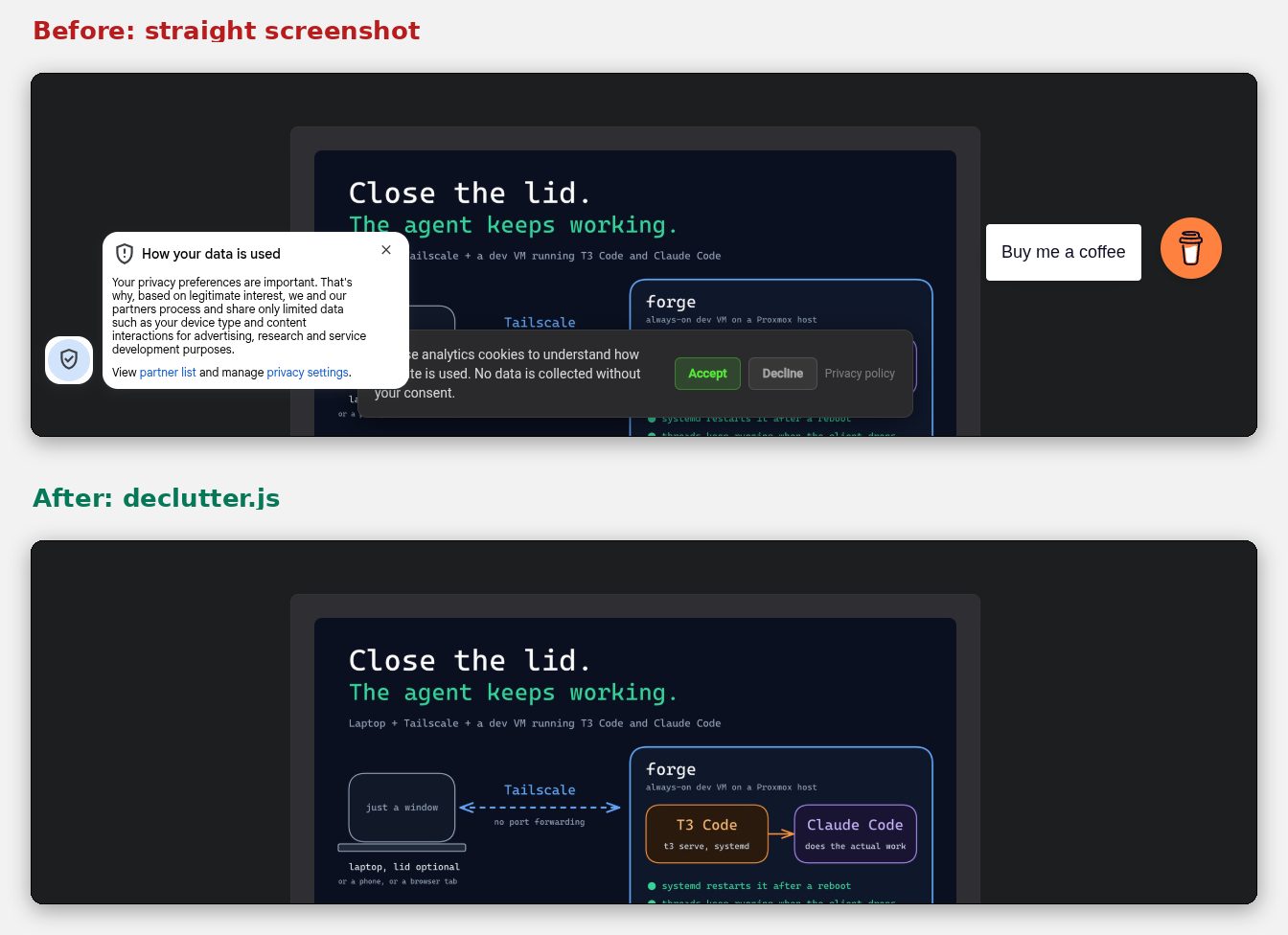
Top: straight screenshot. Bottom: after declutter.js.
Redacting in the page, not the image
The eBay screenshot above needed two things hiding. eBay shows a “Postage to” postcode geolocated from my home IP, and the listings show sellers’ usernames. You can pixelate those afterwards, but it’s neater to rewrite the text in the DOM before shooting, so the image shows AB1 2CD and seller_1 and matches whatever placeholder the post text uses. It’s one browser_evaluate call with a TreeWalker over the text nodes. My blog-drafting skill now does this by default, and it logs every image redaction next to the text ones so I can check them before publishing.
The cover of this post is the same trick in reverse. It’s an HTML card that the agent wrote into a blank tab with document.write(), sized the viewport to 1200x630 and screenshotted.
Caveats
- It won’t get past serious bot protection everywhere. A headful browser on a home IP, with me stepping in for captchas, handles eBay fine, and that’s the only site I’ve pushed hard so far. Some sites will refuse.
- One browser, shared. Two agent sessions using it at once is fine as long as each sticks to its own tab, but they share cookies and logins. Treat the profile folder like a password store.
- VNC password auth is weak on its own. Don’t publish port 5900 anywhere except the tailnet.
- The agent must never buy, bid or message anyone. The skill says so, and anything that commits money waits for me over VNC.
- Your own site doesn’t need any of this. If you want agents to read your pages without a browser, serve Markdown and an llms.txt from Hugo.
Quick reference
| What | Where |
|---|---|
| Watch or take over | RealVNC Viewer to 100.x.y.z:5900 |
| Is it up? | curl -s 127.0.0.1:9222/json/version |
| Restart | cd ~/agent-browser && docker compose restart |
| Logs | docker logs -f agent-browser |
| Reset the profile | stop it, delete ./profile, start it |
| Screenshot to chat | relative filename, embed the absolute path |
| Screenshot to blog | shotfmt raw.png static/images/<slug>-x.jpg --preset inline |
If you want the agent to see your containers’ logs as well as their web UIs, giving Claude Code eyes inside your Docker containers covers that. The tailnet side of all this is the same setup as enabling MagicDNS and HTTPS in Tailscale.
The full shotfmt script
Needs Python 3 and Pillow (apt install python3-pil or pip install pillow). Save it somewhere on your PATH and chmod +x it.
#!/usr/bin/env python3
"""Crop, blur, frame, resize and compress a screenshot.

Made for agent browser screenshots going into chat or a Hugo blog.
Coordinates are pixels of the input image (CSS px for scale=css shots).

  shotfmt in.png out.jpg --preset cover --focus top
  shotfmt in.png out.jpg --box 0,120,1280,600 --max-width 1600
  shotfmt in.png out.png --blur 40,300,260,24 --frame
"""
import argparse
import os
import sys

from PIL import Image, ImageDraw, ImageFilter, ImageOps

PRESETS = {
    # PaperMod cover / og:image: exactly 1200x630.
    "cover": dict(size=(1200, 630), max_width=None),
    # Inline post images: the blog's recent posts are 1600 wide or less.
    "inline": dict(size=None, max_width=1600),
    # Something small enough to glance at in chat.
    "chat": dict(size=None, max_width=1280),
}


def box(s):
    try:
        x, y, w, h = (int(float(v)) for v in s.split(","))
    except ValueError:
        raise argparse.ArgumentTypeError(f"expected x,y,w,h, got {s!r}")
    return x, y, w, h


def size(s):
    try:
        w, h = (int(v) for v in s.lower().split("x"))
    except ValueError:
        raise argparse.ArgumentTypeError(f"expected WxH, got {s!r}")
    return w, h


def fit(img, target, focus):
    """Crop to the target aspect ratio around a focus point, then resize."""
    tw, th = target
    w, h = img.size
    want = tw / th
    if w / h > want:  # too wide: trim the sides
        nw = round(h * want)
        x = {"left": 0, "right": w - nw}.get(focus, (w - nw) // 2)
        img = img.crop((x, 0, x + nw, h))
    else:  # too tall: trim top/bottom
        nh = round(w / want)
        y = {"top": 0, "bottom": h - nh}.get(focus, (h - nh) // 2)
        img = img.crop((0, y, w, y + nh))
    return img.resize(target, Image.LANCZOS)


def frame(img, pad, bg, radius):
    """Rounded corners, a hairline border and a soft shadow on a plain background."""
    w, h = img.size
    mask = Image.new("L", (w, h), 0)
    ImageDraw.Draw(mask).rounded_rectangle((0, 0, w - 1, h - 1), radius, fill=255)
    ImageDraw.Draw(img).rounded_rectangle((0, 0, w - 1, h - 1), radius, outline=(0, 0, 0, 40))

    canvas = Image.new("RGBA", (w + pad * 2, h + pad * 2), bg)
    shadow = Image.new("RGBA", canvas.size, (0, 0, 0, 0))
    ImageDraw.Draw(shadow).rounded_rectangle(
        (pad, pad + pad // 6, pad + w, pad + h + pad // 6), radius, fill=(0, 0, 0, 90))
    canvas = Image.alpha_composite(canvas, shadow.filter(ImageFilter.GaussianBlur(pad / 3)))
    canvas.paste(img, (pad, pad), mask)
    return canvas


def main():
    p = argparse.ArgumentParser(description=__doc__, formatter_class=argparse.RawDescriptionHelpFormatter)
    p.add_argument("input")
    p.add_argument("output", help="format from extension: .jpg .png .webp")
    p.add_argument("--preset", choices=PRESETS)
    p.add_argument("--box", type=box, help="crop x,y,w,h before anything else")
    p.add_argument("--blur", type=box, action="append", default=[],
                   help="pixelate x,y,w,h (repeatable), in input coordinates")
    p.add_argument("--size", type=size, help="exact WxH output, cropping to fit")
    p.add_argument("--focus", choices=["top", "center", "bottom", "left", "right"], default="center",
                   help="what to keep when cropping to --size/cover (default center)")
    p.add_argument("--max-width", type=int)
    p.add_argument("--frame", action="store_true", help="rounded corners + shadow on a padded background")
    p.add_argument("--pad", type=int, default=48)
    p.add_argument("--bg", default="#f2f2f2")
    p.add_argument("--quality", type=int, default=82)
    p.add_argument("--force", action="store_true", help="overwrite an existing output")
    a = p.parse_args()

    if os.path.exists(a.output) and not a.force:
        sys.exit(f"{a.output} exists; pass --force to overwrite")

    preset = PRESETS.get(a.preset, {})
    target = a.size or preset.get("size")
    max_width = a.max_width or preset.get("max_width")

    img = ImageOps.exif_transpose(Image.open(a.input)).convert("RGBA")
    src = img.size

    for x, y, w, h in a.blur:
        region = img.crop((x, y, x + w, y + h))
        small = region.resize((max(1, w // 12), max(1, h // 12)), Image.BILINEAR)
        img.paste(small.resize(region.size, Image.NEAREST), (x, y))

    if a.box:
        x, y, w, h = a.box
        img = img.crop((x, y, min(x + w, src[0]), min(y + h, src[1])))

    if a.frame:
        img = frame(img, a.pad, a.bg, radius=12)

    if target:
        img = fit(img, target, a.focus)
    elif max_width and img.width > max_width:
        img = img.resize((max_width, round(img.height * max_width / img.width)), Image.LANCZOS)

    ext = os.path.splitext(a.output)[1].lower()
    os.makedirs(os.path.dirname(os.path.abspath(a.output)), exist_ok=True)
    if ext in (".jpg", ".jpeg"):
        flat = Image.new("RGB", img.size, a.bg)
        flat.paste(img, mask=img.getchannel("A"))
        flat.save(a.output, "JPEG", quality=a.quality, optimize=True, progressive=True)
    elif ext == ".webp":
        img.save(a.output, "WEBP", quality=a.quality, method=6)
    elif ext == ".png":
        img.save(a.output, "PNG", optimize=True)
    else:
        sys.exit(f"unsupported output type {ext!r}")

    print(f"{a.output}  {src[0]}x{src[1]} -> {img.width}x{img.height}  "
          f"{os.path.getsize(a.output) // 1024} KB")


if __name__ == "__main__":
    main()
Or just hand this page to your agent
That’s a lot of copying and pasting. You can skip it. Give Claude Code the URL of this post and ask it to build the same thing on your box:
Read https://exitcode0.net/posts/claude-code-browser-docker-playwright-mcp/ and set up
the same agent browser on this machine. Check with me before you pick ports or bind addresses.
Everything it needs is on this page: the container files, the MCP command, declutter.js and shotfmt. It’ll still need you for the parts only you know, like your tailnet IP, a VNC password and where your blog keeps its images.
Then give it something to hunt for. I’d suggest something you actually want to buy. Open VNC on your phone and watch it trawl through listings you’d have given up on after page two.
Enjoy. ✌️